
How to Take a Screenshot on Any Device Easily

Sometimes you need to save something important that appears on your screen. It could be a school assignment, a funny message, an error on your laptop, or useful information you want to keep. Learning how to take a screenshot makes this quick and easy. The good news is that almost every device has a built-in way to capture your screen, so you usually do not need to install another app. However, the buttons and shortcuts can be different depending on whether you use Windows, Mac, Android, iPhone, or Chromebook. This guide explains the easiest methods for each device and helps you find your screenshots afterward.
What Is a Screenshot?
A screenshot is a picture of whatever is currently displayed on your device’s screen. It captures the visible information and saves it as an image.
For example, a student might take a screenshot of:
- Important notes from an online class
- A useful website
- An error message on a computer
- A timetable or homework instructions
- A conversation that needs to be saved
Screenshots are useful because they allow you to keep information exactly as it appeared at a specific moment.
How to Take a Screenshot on Windows
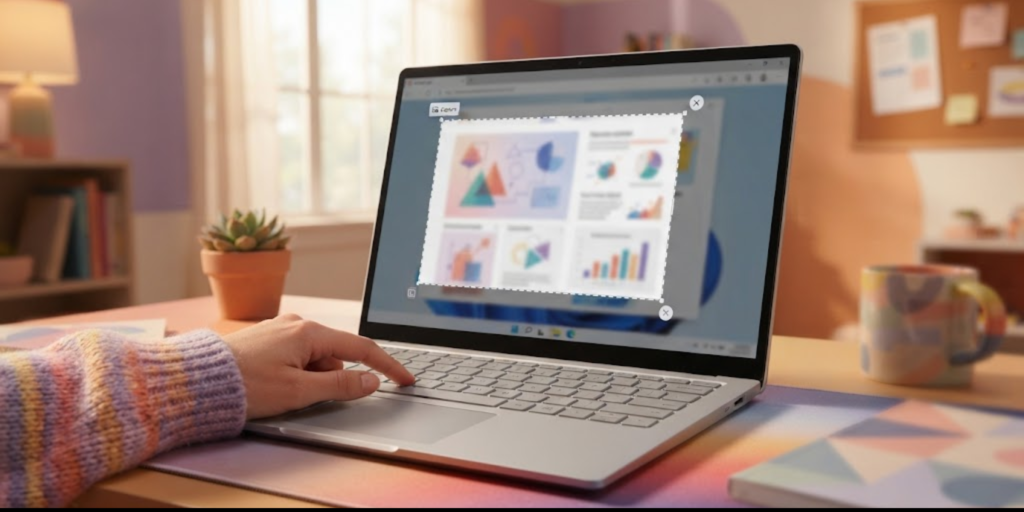
Windows gives you several ways to capture your screen. The best method depends on whether you want to capture the entire screen, one window, or only a selected area.
Use Windows + Print Screen
One of the easiest methods is the Snipping Tool shortcut.
- Press Windows + Shift + S.
- Your screen will become slightly darker.
- Choose the type of screenshot you want.
- Drag your mouse over the area you want to capture.
- The screenshot will be copied to your clipboard.
You can then paste it into an app by pressing Ctrl + V. A notification may also appear, allowing you to open, edit, and save the image.
The official Microsoft Snipping Tool guide explains the different capture options, including rectangular, freeform, window, and full-screen screenshots.
Use Windows + Print Screen
If you want to capture the entire screen and save it automatically, press:
Windows + Print Screen
Your screen may briefly dim. Windows normally saves the image in:
Pictures → Screenshots
This method is useful when you need to take several screenshots quickly.
Use Alt + Print Screen
Pressing:
Alt + Print Screen
captures only the currently active window. This can be helpful when you do not want your entire desktop to appear in the image.
After taking the screenshot, open an app such as Paint or a document editor and press Ctrl + V to paste it.
If you are still learning basic computer features, our guide to computer basics for kids can help you understand common computer tools and functions more easily.
How to Take a Screenshot on a Mac
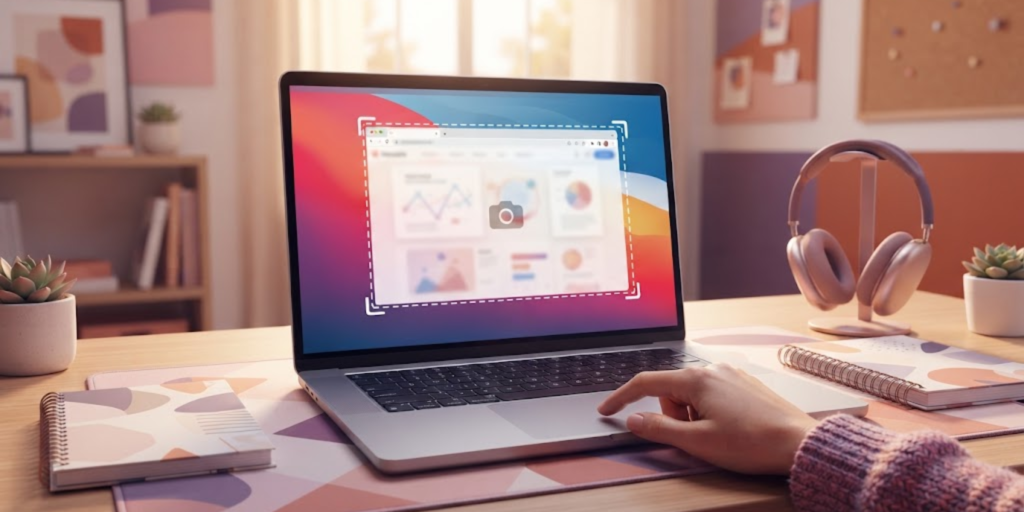
Mac computers also include simple keyboard shortcuts for screenshots. You can capture the entire screen, a selected area, or a specific window.
Capture the Entire Screen
Press:
Shift + Command + 3
This captures your entire screen. The screenshot is normally saved automatically.
Capture Part of the Screen
Press:
Shift + Command + 4
Your cursor will change, allowing you to select a specific area. Click and drag over the section you want to capture, then release the mouse or trackpad button.
This is useful when you only need a small part of a webpage or document.
Capture a Specific Window
First, press:
Shift + Command + 4
Then press the Space bar. Your cursor changes so you can select a window. Click the window you want to capture.
You can also use Shift + Command + 5 to open the Screenshot app, which gives you more capture and recording options. Apple provides detailed instructions for taking screenshots on a Mac.
How to Take a Screenshot on Android
Android phones can have small differences depending on the manufacturer. However, the most common method works on many modern Android devices.
Use the Power and Volume Down Buttons
- Open the screen you want to capture.
- Press the Power button and Volume Down button together.
- Release them quickly.
- Your screen should flash or show a screenshot preview.
The screenshot is usually saved in your Photos or Gallery app.
Some Android phones also offer other options, such as:
- Three-finger gestures
- Screenshot buttons in the quick settings menu
- Voice assistant commands
The exact method can depend on your phone brand and Android version.
How to Take a Screenshot on an iPhone

The method for taking a screenshot on an iPhone depends mainly on whether your device has a Home button.
iPhone Without a Home Button
Press the:
Side button + Volume Up button
at the same time, then quickly release them.
iPhone With a Home Button
Press the:
Side button or Top button + Home button
at the same time, then release them.
A preview usually appears briefly on the screen. You can tap it to crop, draw, or edit the screenshot before saving it.
Your screenshots are normally available in the Photos app.
How to Take a Screenshot on a Chromebook
Chromebooks have their own screenshot shortcuts. Fortunately, they are simple once you know the correct keys.
Capture the Entire Screen
Press:
Ctrl + Show Windows
The Show Windows key usually looks like a rectangle with lines beside it.
Capture Part of the Screen
Press:
Ctrl + Shift + Show Windows
Then select the area you want to capture.
Your Chromebook will normally save the screenshot automatically, making it easy to find later.
Where Do Screenshots Go?
After learning how to take a screenshot, the next question is usually where the image was saved.
The location depends on your device:
- Windows: Often in Pictures → Screenshots
- Mac: Usually on the Desktop by default
- Android: Usually in Gallery or Google Photos
- iPhone: Usually in the Photos app
- Chromebook: Usually in the Downloads folder
However, some screenshot methods only copy the image to your clipboard. In that case, you need to paste it into another app before saving it.
How to Edit a Screenshot
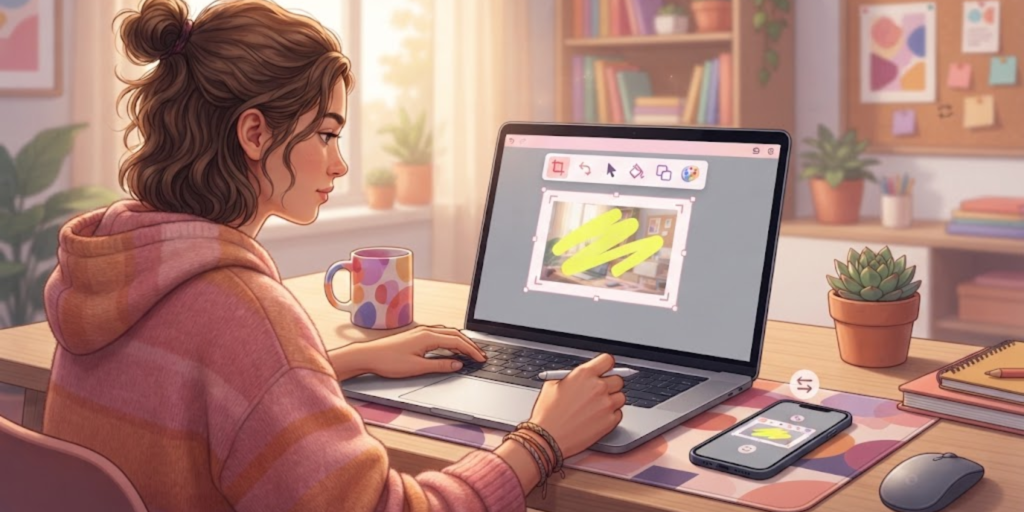
You do not always need to keep the screenshot exactly as it was captured. Basic editing can make the image clearer and more useful.
For example, you can:
- Crop unnecessary areas
- Draw around important information
- Add text
- Highlight something important
- Blur private information when your editing tool supports it
Suppose you are sending a screenshot of a computer problem to a teacher or friend. Highlighting the error message can help them understand the problem faster.
Screenshots can also be useful when troubleshooting your computer. For example, if your device is running slowly, you might capture an error or unusual message before following tips on how to speed up a slow laptop.
Common Problems When Taking a Screenshot
Sometimes a screenshot does not work as expected. Fortunately, most problems have simple solutions.
The Screenshot Shortcut Does Not Work
First, check that you are pressing the correct keys together. On some laptops, you may also need to hold the Fn key.
For example, the Print Screen button can work differently depending on your keyboard.
You Cannot Find the Screenshot
Check your device’s default screenshot folder. You can also search for recent images using your device’s file manager or photo app.
The Screenshot Only Captures Part of the Screen
Make sure you selected the correct capture mode. Tools such as Windows Snipping Tool allow you to choose between a selected area, a window, or the entire screen.
When Should You Take a Screenshot?
Screenshots are helpful in many everyday situations. Students, teachers, gamers, and beginner computer users can all use them.
You might take one when:
- Saving online study information
- Reporting a technical problem
- Keeping an important confirmation
- Sharing something with a friend
- Saving instructions for later
- Showing someone exactly what appears on your screen
However, always think about privacy before sharing screenshots. A screenshot can accidentally include personal information, passwords, email addresses, or private messages.
If you are learning more about safe internet use, understanding what Wi-Fi is and how it works can also help you build stronger basic technology knowledge.
Tips for Taking Better Screenshots
A good screenshot should clearly show the information you want to share.
Before capturing your screen:
- Close anything private that you do not want to appear.
- Remove unnecessary windows.
- Make sure important text is visible.
- Choose the correct screenshot method.
- Crop the image if needed.
Also, avoid sharing screenshots that contain sensitive information. For instance, passwords, account details, private messages, and personal addresses should not be visible.
A clean screenshot is easier for other people to understand and looks more professional.
Frequently Asked Questions (FAQ)
1. How do I take a screenshot quickly on Windows?
Press Windows + Shift + S to open the Snipping Tool and select the area you want to capture.
2. How do I take a screenshot on a laptop?
The method depends on your operating system. Windows laptops often use Windows + Shift + S, while Macs use Shift + Command + 3 or 4.
3. Where are my screenshots saved?
Screenshots are usually saved in a default folder such as Pictures, Desktop, Downloads, Gallery, or Photos, depending on your device.
4. Can I take a screenshot of only part of my screen?
Yes. Windows, Mac, Chromebook, Android, and iPhone devices offer ways to capture a selected area or part of the screen.
5. Why is my Print Screen button not working?
Some laptops require you to press the Fn key with Print Screen. Your keyboard settings may also affect how the button works.
6. Can I edit a screenshot after taking it?
Often, yes. Many games have their own FPS counters, and Windows and some gaming platforms also
Yes. Most devices allow you to crop, draw, highlight, or add text using built-in tools or photo editing apps.
provide performance features.
Conclusion
Knowing how to take a screenshot is a simple skill that can save time and make sharing information much easier. Whether you use Windows, Mac, Android, iPhone, or Chromebook, your device has a quick way to capture what appears on the screen. Once you know the right shortcut, you can save useful information, report problems, or share something important in seconds. Most importantly, always check your screenshot for private information before sending it to someone else.