
How to Speed Up Slow Laptop
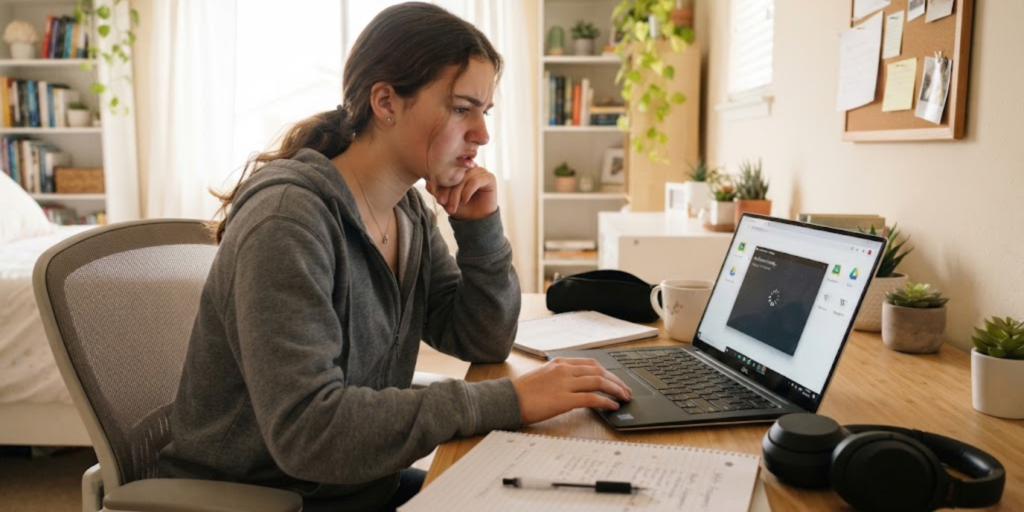
A slow laptop can make even simple tasks frustrating. Apps may take longer to open, websites may freeze, and schoolwork can become harder than it needs to be. Fortunately, you may not need to replace your device right away. There are several simple ways to speed up a slow laptop and improve its everyday performance. From removing unnecessary programs to freeing up storage space, small changes can sometimes make a noticeable difference. This guide explains the most common reasons laptops become slow and shows you practical steps you can take to make your computer run more smoothly.
Why Is My Laptop So Slow?
Before trying to fix the problem, it helps to understand what may be causing it. A laptop can become slow for several reasons, and sometimes more than one issue is involved.
Common causes include:
- Too many programs running at the same time
- Too many startup apps
- Low storage space
- Outdated software or drivers
- Malware or unwanted programs
- Too many browser tabs
- Old hardware
For example, a student might have a web browser, video meeting app, document editor, and several other programs open at once. If the laptop has limited memory, it may struggle to handle everything smoothly.
The good news is that you can often improve performance by fixing these problems one step at a time.
1. Restart Your Laptop
Restarting your laptop is one of the easiest things to try first. It can close background processes and clear temporary system activity that may be slowing your device down.
Instead of simply closing the laptop lid, choose Restart from the power menu.
After your laptop turns back on, wait a moment before opening several programs. Then check whether it feels faster.
2. Close Programs You Are Not Using
Running too many programs at once can use your laptop’s memory, processor, and other system resources.
Open the programs you actually need and close the rest. This is especially helpful when your laptop becomes slow while doing schoolwork, browsing the internet, or watching videos.
You can also check which programs are using the most resources.
Check Task Manager on Windows
On a Windows laptop:
- Press Ctrl + Shift + Esc.
- Open Task Manager.
- Look at the programs currently running.
- Check which apps are using a large amount of CPU, memory, or disk resources.
- Close programs you do not need.
However, be careful not to close important Windows processes if you are unsure what they do.
3. Remove Unnecessary Startup Programs
Some programs automatically start when you turn on your laptop. While this can be useful for important apps, having too many startup programs can make your computer take longer to boot.
To manage startup apps on Windows:
- Open Task Manager.
- Select the Startup apps section.
- Review the programs that start automatically.
- Disable apps that you do not need immediately after startup.
For instance, you may not need every messaging app, game launcher, or software updater to open the moment your laptop starts.
Reducing unnecessary startup programs can help your laptop feel more responsive.
4. Free Up Storage Space
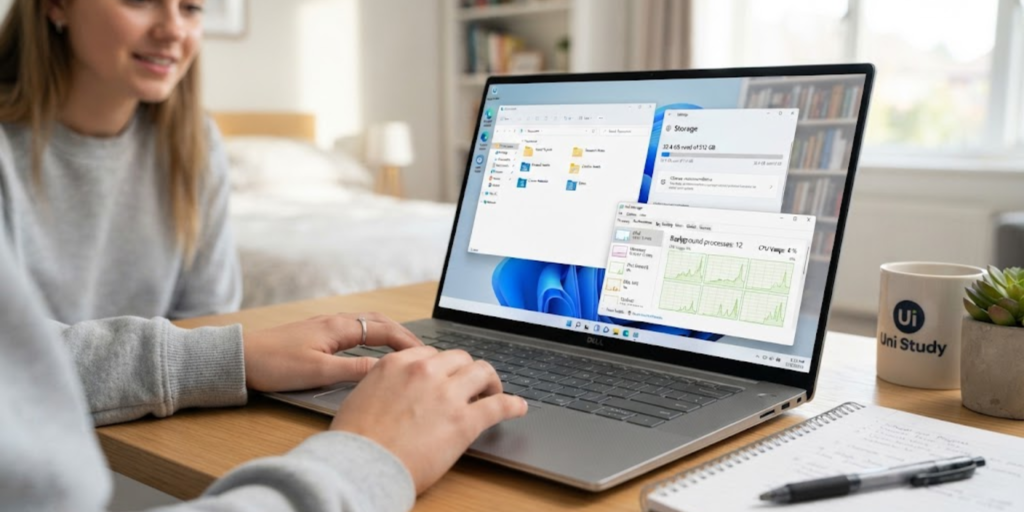
A nearly full storage drive can affect your laptop’s performance. It can also make it harder to install updates and manage files properly.
Start by checking your Downloads folder, videos, old documents, and files you no longer need. You can delete unnecessary files or move important ones to external storage.
Windows also includes built-in tools that can help remove temporary files. Microsoft explains how to free up drive space in Windows and manage unnecessary files safely.
Use Storage Sense
Windows users can also use Storage Sense to help manage temporary files and other unnecessary data.
Go to:
Settings → System → Storage
From there, review your storage options and remove files you no longer need.
Remember to check your Downloads folder carefully before deleting anything important.
5. Update Windows and Your Software
Outdated software can sometimes cause performance problems, bugs, or compatibility issues. Therefore, keeping Windows and important programs updated is a good habit.
To check for Windows updates:
- Open Settings.
- Select Windows Update.
- Choose Check for updates.
- Install available updates when appropriate.
- Restart your laptop if required.
Microsoft also provides official guidance on improving PC performance in Windows.
However, updating your laptop will not magically fix every performance problem. If your hardware is old or your storage is nearly full, you may need to address those issues as well.
6. Check Your Laptop for Malware
Malware and unwanted software can use system resources and make a computer behave strangely. For this reason, running a security scan is an important step when your laptop suddenly becomes slow.
Windows includes built-in security tools that can help scan your device for threats.
You should also practice safe online habits. For example, avoid downloading unknown files and be careful when clicking suspicious links. Our guide on how to browse the internet safely explains simple habits that can help you stay safer online.
Strong account security matters too. Using strong passwords and good digital hygiene can help protect your accounts and devices from unnecessary security risks.
7. Reduce the Number of Browser Tabs
Web browsers can use a surprising amount of memory, especially when many tabs are open.
If your laptop slows down while browsing:
- Close tabs you no longer need.
- Remove unnecessary browser extensions.
- Restart your browser occasionally.
- Avoid running several heavy websites at once.
For example, streaming video, online games, video calls, and large websites can all use significant system resources at the same time.
Instead of keeping dozens of tabs open, save important pages as bookmarks and return to them later.
8. Uninstall Programs You No Longer Use
Over time, laptops often collect programs that are rarely used. Some of these apps may take up valuable storage space or run background processes.
Review the programs installed on your laptop and remove software you no longer need.
On Windows, you can usually check installed programs through:
Settings → Apps → Installed apps
Before uninstalling something, make sure you know what it is. Do not remove important system software simply to create more space.
Cleaning up unused programs can make your laptop easier to manage and may reduce unnecessary background activity.
9. Adjust Your Laptop's Performance Settings
Windows includes visual effects and settings that can make the interface look smoother. However, older laptops may struggle with some of these effects.
If your computer has limited hardware resources, reducing unnecessary visual effects may help it feel more responsive.
You can search Windows for:
Adjust the appearance and performance of Windows
Then review the available performance options.
This may be especially useful for older laptops. Still, the improvement will depend on your device and its hardware.
10. Consider a Hardware Upgrade
If you have tried the software fixes and your laptop is still extremely slow, the hardware may be the main limitation.
Older laptops may struggle with modern programs, websites, and operating systems. Depending on your device, upgrading certain components may improve performance.
Possible upgrades include:
- Adding more RAM
- Replacing an older hard drive with an SSD
- Replacing an aging laptop when upgrades are not practical
An SSD can make a noticeable difference compared with an older traditional hard drive because it can improve how quickly the system accesses data.
Before upgrading anything, check whether your laptop supports the upgrade. Some modern laptops have components that cannot be easily replaced.
Simple Habits That Can Keep Your Laptop Fast
Once you manage to speed up a slow laptop, regular maintenance can help prevent the same problems from returning.
Try these simple habits:
- Restart your laptop regularly.
- Keep Windows updated.
- Avoid installing unnecessary software.
- Delete files you no longer need.
- Keep your storage from becoming completely full.
- Close programs when you finish using them.
- Be careful when downloading files from unknown websites.
Online safety also plays a role in keeping your device healthy. Understanding cyberbullying awareness and how to stay safe online can help teenagers build safer and more responsible digital habits.
When Should You Replace Your Laptop?
Not every slow laptop can be fixed with a few settings changes.
You may want to consider replacing your laptop if:
- It cannot run the software you need.
- Important hardware is failing.
- It is too old to receive necessary updates.
- Repairs cost almost as much as a newer device.
- Your schoolwork or daily tasks are constantly affected.
Before replacing your laptop, try the basic steps in this guide. Sometimes cleaning storage, removing startup apps, and updating software can solve the problem.
However, if your laptop’s hardware is simply too old, a newer device may be the better long-term option.
Frequently Asked Questions (FAQ)
1. Why is my laptop suddenly so slow?
Your laptop may suddenly become slow because of background programs, low storage space, software updates, malware, or too many programs running at once.
2. How can I speed up a slow laptop for free?
You can restart your laptop, close unnecessary apps, remove startup programs, free up storage, uninstall unused software, and check for updates without spending money.
3. Will deleting files make my laptop faster?
Deleting unnecessary files can help if your storage drive is nearly full. However, deleting random files will not always improve performance, so only remove files you no longer need.
4. How can students improve their critical thinking?
Deleting unnecessary files can help if your storage drive is nearly full. However, deleting random files will not always improve performance, so only remove files you no longer need.
4. Does having too many browser tabs slow down a laptop?
Yes. Many browser tabs can use memory and processor resources, especially when they contain videos, games, or other demanding content.
5. Should I upgrade my RAM or SSD?
It depends on your laptop and the cause of the slowdown. More RAM can help with multitasking, while replacing an older hard drive with an SSD can improve system responsiveness.
6. Can malware make a laptop slow?
Yes. Malware can use system resources and affect performance. Running a security scan can help detect potential threats.
Conclusion
A slow computer does not always mean you need to buy a new laptop. You can often speed up a slow laptop by restarting it, closing unnecessary programs, managing startup apps, freeing storage space, updating software, and checking for malware.
Start with the simplest fixes first and test your laptop after each change. If performance is still poor, the problem may be related to older hardware. With regular maintenance and safer digital habits, you can help your laptop stay faster and more reliable for school, work, and everyday use.