
How to Reduce Lag While Gaming on a Laptop
Gaming on a laptop can be frustrating when your character freezes, movements feel delayed, or the game suddenly slows down. If you are wondering how to reduce lag while gaming, the problem may come from your internet connection, graphics settings, background apps, overheating, or limited hardware. Fortunately, you can try several simple fixes before spending money on new hardware. This guide explains practical ways to reduce gaming lag on a laptop, improve FPS, and make games feel smoother. You will also learn how to identify whether your problem is caused by low FPS, network latency, or your laptop struggling to handle the game.
What Causes Lag While Gaming on a Laptop?
Before fixing lag, it helps to understand what is causing it. “Lag” can describe several different problems, and each one needs a slightly different solution.
Common causes include:
- A weak or unstable internet connection
- High ping or network latency
- Low FPS caused by demanding graphics settings
- Too many background applications
- An overheating CPU or GPU
- Outdated graphics drivers
- Low available storage or memory
- Using battery power instead of AC power
- A laptop that does not meet the game’s hardware requirements
For example, if the game looks smooth but other players suddenly move or respond late, the issue may be network lag. However, if the entire game looks choppy, your FPS may be too low.
How to Reduce Lag by Lowering Graphics Settings
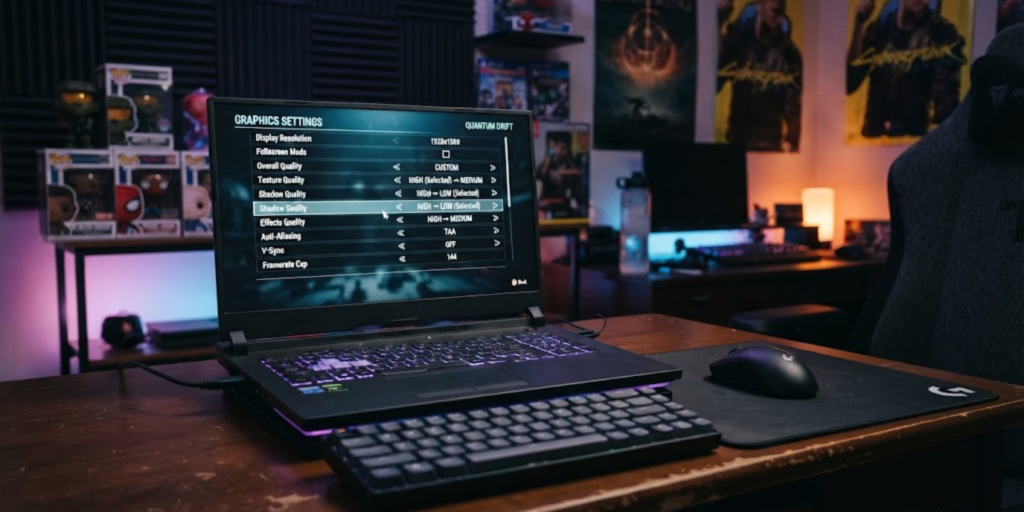
One of the easiest ways to improve gaming performance is to reduce demanding graphics settings.
Higher graphics quality requires more work from your GPU. If your laptop cannot keep up, lowering a few settings can improve frame rates.
Start with these settings:
1. Lower the Resolution
Reducing the game’s resolution means your laptop has fewer pixels to render. Try moving from a higher resolution to a lower one if your FPS is consistently low.
You may notice a small drop in image sharpness, but smoother gameplay can be more important during fast-paced games.
2. Reduce Shadows and Effects
Shadows, reflections, lighting effects, and particle effects can use a lot of GPU resources.
Try setting these options to Low or Medium first. You do not necessarily need to lower every setting to the minimum.
3. Adjust Texture Quality
Texture quality affects how detailed surfaces look. If your laptop has limited graphics memory, lowering texture quality may help reduce performance problems.
For older or entry-level gaming laptops, a balanced combination of Medium and Low settings can often be more practical than trying to use the highest preset.
If you are learning how to reduce lag, adjusting these settings is a good place to start.
Close Background Apps Before Gaming
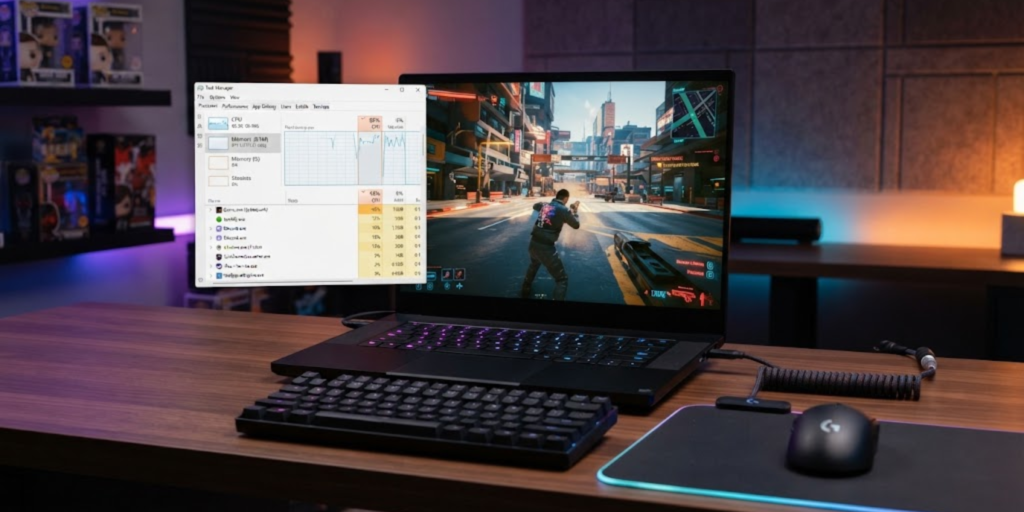
Background applications can use CPU, RAM, network bandwidth, or other system resources.
Before launching a demanding game, close programs you do not need. These might include:
- Web browsers with many open tabs
- Video editing software
- Large downloads
- Unused launchers
- Streaming applications
- Other games
- Cloud-syncing applications
You can also check Task Manager on Windows to see which applications are using the most CPU and memory.
However, do not randomly end processes if you do not know what they do. Some Windows processes are necessary for your system to work properly.
If your laptop is generally slow, not just during gaming, you may also benefit from these practical tips for speeding up a slow laptop.
Keep Your Laptop Cool
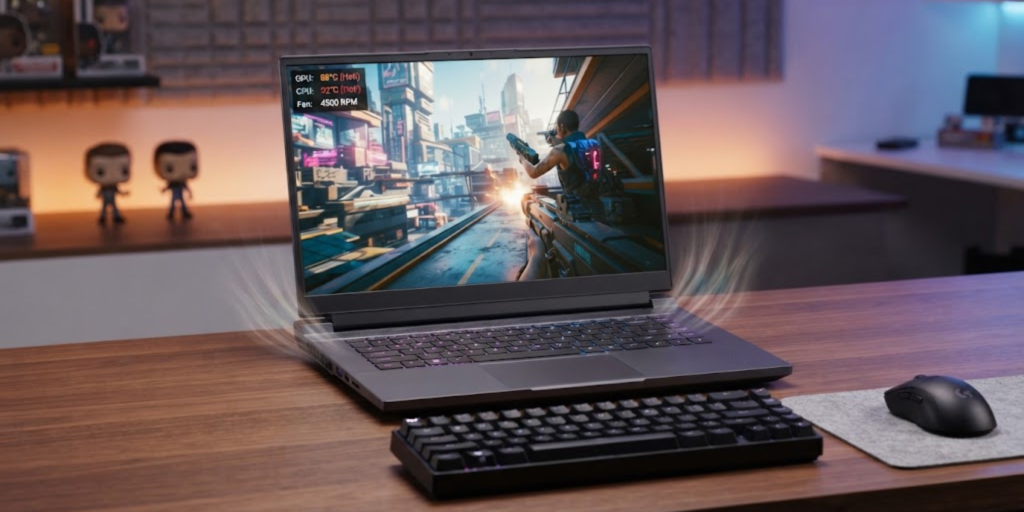
Heat can become a serious problem during long gaming sessions. When a laptop gets too hot, its components may reduce their performance to control temperatures. This can lead to lower FPS and stuttering.
Keep your laptop on a hard, flat surface so that its ventilation openings are not blocked. Avoid placing it on blankets, pillows, or other soft surfaces while gaming.
You should also keep the vents reasonably clean. If dust has built up inside the laptop, professional cleaning may be safer than opening the device if you are not familiar with laptop hardware.
A cooler laptop does not automatically guarantee higher FPS, but preventing excessive heat can help your system maintain stable performance.
Use the Correct Power Mode
Gaming laptops generally perform better when connected to their charger. On battery power, a laptop may use power-saving behavior that limits performance.
Before starting a demanding game:
- Connect the laptop to its charger.
- Open Settings in Windows.
- Go to System > Power & battery.
- Check the available power mode options.
- Choose a performance-focused option when appropriate.
The exact options can vary depending on your Windows version and laptop manufacturer.
Do not assume that changing power settings alone will solve every lag problem. Your laptop still needs enough CPU, GPU, RAM, and cooling capacity for the game.
Turn On Useful Windows Gaming Features
Windows includes settings designed to improve the gaming experience.
For example, Windows provides Game Mode, which is available through the Gaming settings. Microsoft describes Game Mode as a way to optimize system performance during gaming sessions.
Windows 11 also includes Optimizations for windowed games. Microsoft says this feature can improve performance for compatible DirectX 10 and DirectX 11 games running in windowed or borderless modes by reducing frame latency.
You can check it under:
Settings > System > Display > Graphics
Then look for the relevant gaming graphics options.
If your laptop has more than one GPU, Windows may also let you choose a High performance graphics preference for an individual game.
Update Your Graphics Drivers
Your GPU driver helps Windows and your games communicate properly with your graphics hardware.
If your drivers are very old, updating them may fix compatibility problems or performance issues. Check the official support software or website for your GPU manufacturer, such as NVIDIA, AMD, or Intel.
Also keep Windows updated. Security and system updates can include important fixes, although you should not expect every update to increase gaming FPS.
For Windows gaming and system settings, you can also review Microsoft’s official Windows gaming guidance for current settings and features.
Check Your Internet Connection for Online Games
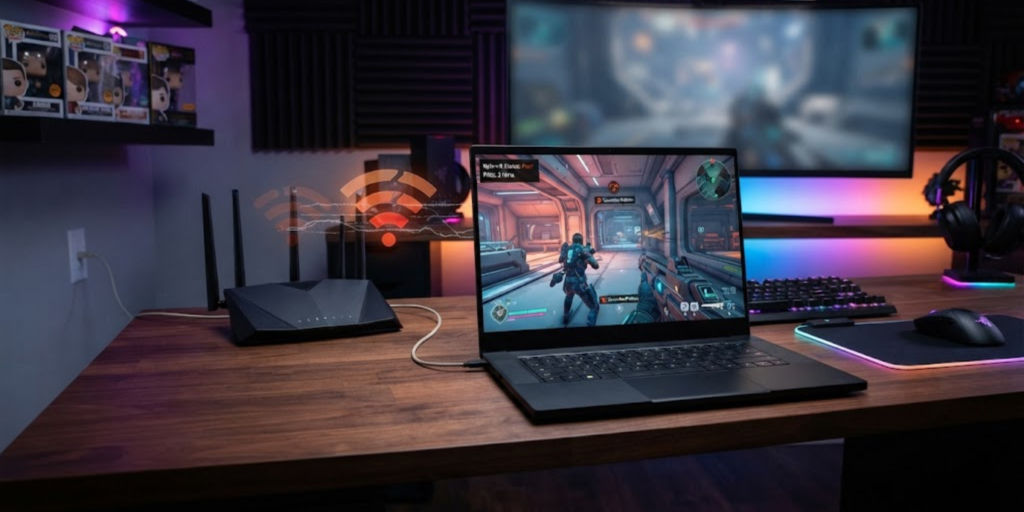
If you only experience lag in online multiplayer games, your internet connection may be the main problem.
Two common terms are ping and latency. They describe how long it takes data to travel between your device and the game server. Higher latency can make actions feel delayed.
Try these steps:
- Move closer to your Wi-Fi router.
- Disconnect devices that are heavily using the network.
- Stop large downloads while gaming.
- Restart your router if your connection is behaving unusually.
- Use a wired Ethernet connection if it is available.
- Choose a nearby game server when the game provides server options.
Remember that higher internet speed does not automatically mean lower ping. The quality and route of the connection also matter.
Choose a Stable FPS Instead of Maximum Graphics
More FPS is not always the only goal. Stable frame rates can make a game feel smoother than constantly changing FPS.
If your game jumps between high and low frame rates, try lowering graphics settings or enabling an FPS limit if the game provides one.
For example, instead of pushing your laptop to produce an unstable 100 FPS, you may get a smoother experience by using settings that keep performance more consistent.
Your display also matters. Windows explains that refresh rate is the number of times your display updates each second, and higher refresh rates can make motion appear smoother when supported by the hardware.
Check Your Laptop's Hardware
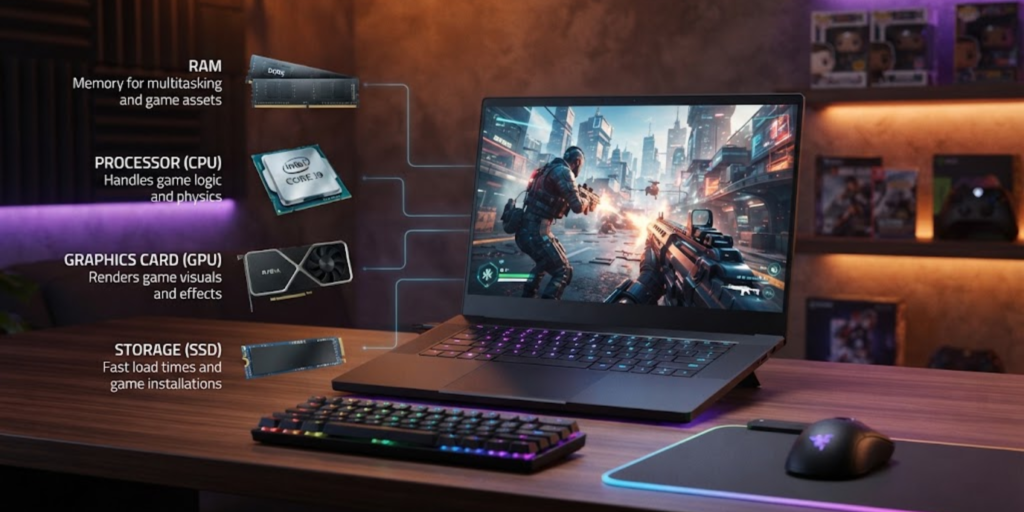
Sometimes the problem is simply that the laptop is not powerful enough for the game.
Check the game’s minimum and recommended system requirements. Pay attention to:
- Processor
- Graphics card
- RAM
- Storage
- Operating system
- Available disk space
If your laptop only meets the minimum requirements, you may need to use lower graphics settings.
Upgrading hardware is not always possible on laptops. Some models allow RAM or storage upgrades, while others have components that are difficult or impossible to replace.
Free Up Storage Space
A nearly full storage drive can make general laptop maintenance harder, especially when Windows and other applications need temporary space.
Check your available storage and remove files or applications you no longer need. Avoid deleting Windows system files unless you know exactly what they are.
You can also uninstall games you no longer play if storage is becoming a problem.
Freeing space will not magically increase your GPU’s power, but it can help keep your laptop organized and reduce storage-related problems.
Restart Your Laptop Before a Long Gaming Session
It sounds simple, but restarting can clear temporary system problems and close applications that may have remained active in the background.
If you have been using your laptop for hours, a restart can be a useful first troubleshooting step before changing complicated settings.
After restarting, launch only the applications you actually need and then test the game again.
Avoid Unnecessary Background Recording
Screen recording, streaming, overlays, and other gaming tools can consume system resources.
If your laptop struggles with FPS, temporarily disable features you do not need. Then test the game again.
If performance improves, turn features back on one at a time. This makes it easier to identify which feature is affecting your game.
Stay Safe While Downloading Gaming Tools
Be careful when downloading “FPS boosters,” unofficial game patches, or performance tools from unknown websites. Some programs may be unreliable or contain unwanted software.
Keep your operating system and security software updated, and download drivers and applications from trusted sources. CISA also recommends keeping gaming devices and their software up to date and protecting personal information while gaming online.
For more gaming-related learning, you can also explore what esports are and how they work.
What to Do If Your Game Still Lags
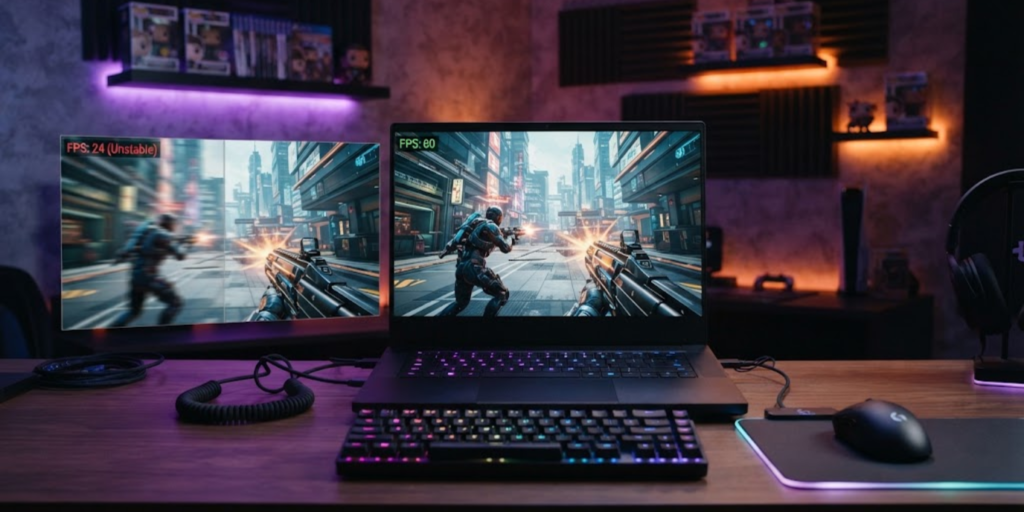
If you have tried the basic fixes and the game still lags, identify exactly what kind of problem you have.
If FPS is low
Try:
- Lowering graphics settings
- Reducing resolution
- Closing background apps
- Checking temperatures
- Updating GPU drivers
- Using the appropriate power mode
If ping is high
Try:
- Improving your Wi-Fi connection
- Using Ethernet
- Closing bandwidth-heavy applications
- Choosing a closer game server
- Checking whether other devices are using the network
If the game stutters
Try:
- Checking available RAM
- Closing background programs
- Checking storage space
- Monitoring laptop temperatures
- Reducing graphics settings
- Restarting the laptop
Finding the specific cause is much better than changing every setting at once.
Common Mistakes to Avoid
When trying to improve gaming performance, avoid these mistakes:
- Installing random “game booster” software
- Downloading drivers from unofficial websites
- Blocking laptop vents
- Running demanding games on battery power
- Setting every graphic option to Ultra
- Assuming every lag problem is caused by slow internet
- Ignoring overheating
- Changing advanced Windows settings without understanding them
Make one or two changes at a time. Then test the game. This approach makes troubleshooting much easier. If you are still wondering how to reduce lag, check your FPS, ping, temperature, and background apps one by one.
Frequently Asked Questions (FAQ)
1. How to reduce lag while gaming on a laptop?
Start by identifying whether the problem is low FPS or high network latency. Then lower demanding graphics settings, close background apps, keep your laptop cool, update drivers, and use a stable internet connection.
2. Why is my laptop lagging only when I play games?
Games place much higher demands on your CPU and GPU than everyday tasks. If the hardware is under heavy load, overheating, or running out of available resources, gaming performance can suffer.
3. Does lowering graphics improve FPS?
Usually, lowering demanding graphics settings can reduce the workload on your GPU and may improve FPS. The exact improvement depends on your laptop’s hardware and the game.
4. Does Wi-Fi cause gaming lag?
Wi-Fi can contribute to network lag when the connection is weak, unstable, or crowded. However, low FPS caused by your laptop’s hardware is a different problem.
5. Should I play games while my laptop is charging?
For demanding games, connecting the charger can help the laptop use its available performance instead of relying on battery-saving behavior. Use the power settings recommended for your particular laptop.
6. Can overheating cause game lag?
Yes. Excessive heat can cause a laptop’s components to reduce performance, which may result in lower FPS or stuttering.
7. Should I lower every graphics setting to Low?
Not necessarily. Start with the settings that use the most GPU resources, such as shadows, reflections, effects, and resolution. Then adjust other settings if performance is still poor. These small adjustments can also help you understand how to reduce lag without sacrificing too much visual quality.
Conclusion
Knowing how to reduce lag starts with identifying the real cause. If your FPS is low, focus on graphics settings, background apps, cooling, drivers, and hardware. If your ping is high, focus instead on your internet connection and network stability.
Most importantly, change settings gradually and test your game after each adjustment. With the right combination of graphics settings, system maintenance, cooling, and network improvements, you can often make laptop gaming feel much smoother without immediately buying a new device.