
How to Organize Files on a Computer for Students

A messy computer can make simple schoolwork surprisingly frustrating.As a result, assignments, photos, downloads, notes, and projects can quickly end up scattered across different folders. Learning to organize files gives you a simple system for keeping schoolwork easy to find and manage. You do not need special software or advanced computer skills to get started. A few well-named folders, consistent file names, and a regular cleanup routine can make a big difference. In this guide, you will learn how to organize school files, create useful folders, name documents clearly, find files quickly, avoid common mistakes, and protect important work with backups.
Why Should Students Organize Files?

Good file organization helps you spend less time searching and more time working. Instead of opening several folders or checking your Downloads folder repeatedly, you can go directly to the subject or project you need.
For example, imagine you have a science assignment due tomorrow. If your research notes, images, presentation, and final document are all inside one clearly named folder, you can find everything quickly.
Organizing files can also help you:
- Keep school assignments together
- Find old projects more easily
- Avoid duplicate files
- Keep your desktop less cluttered
- Protect important documents
- Free up storage space
- Prepare work for sharing or submitting
If you are still learning basic computer skills, a simple introduction such as Computer Basics for Kids can help you understand the everyday computer tasks that make file organization easier.
How to Organize Files on a Computer

You do not need a complicated system. The best setup is one that makes sense to you and is easy to maintain.
Create a Main Folder to Organize Files
Start with one main folder for your schoolwork.
You could call it:
School
Inside it, create folders for your subjects:
School
├── English
├── Mathematics
├── Science
├── Computer
├── Social Studies
└── Projects
This gives you a clear starting point. Instead of saving every assignment directly on your desktop, you have one main location for schoolwork.
Organize Files Into Subject Subfolders
If a subject contains many assignments, add smaller folders.
For example:
Science
├── Assignments
├── Notes
├── Projects
└── Presentations
You could also organize by school year or grade if you need to keep older work.
For instance:
School
├── Grade 7
│ ├── English
│ ├── Mathematics
│ └── Science
└── Grade 8
├── English
├── Mathematics
└── Science
Choose one structure and keep using it. A simple system that you actually follow is better than a complicated system that becomes confusing.
Use Clear File Names to Organize Files
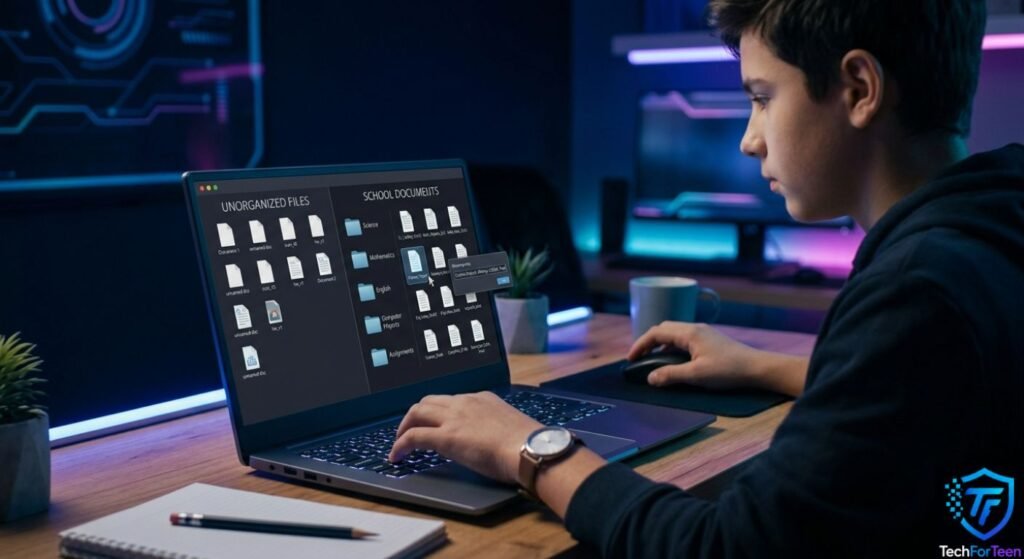
A folder helps you locate a group of files, but a good file name helps you identify the exact document.
Avoid names such as:
- homework
- new document
- final
- assignment2
- stuff
These names become confusing when you have several similar files.
Instead, use names that explain what the file contains.
For example:
- Science_Water_Cycle_Assignment
- Math_Fractions_Practice
- English_Book_Report
- Computer_Python_Project
If you have several versions, add a date or version number:
Science_Project_Draft1
Science_Project_Draft2
Science_Project_Final
Most importantly, avoid creating several files called final, final2, and reallyfinal. That system becomes difficult to understand later.
Organize Files by Keeping Your Desktop Simple

Your desktop is useful for quick access, but it should not become your main storage location.
A desktop filled with dozens of documents, screenshots, installers, and folders can make it harder to find what you need.
Instead, keep only frequently used items there. Move completed assignments into your school folders.
For example:
Desktop
├── School
├── Important Shortcuts
└── Temporary Work
You can then move finished work into the correct subject folder.
Organize Files by Cleaning Up Downloads

The Downloads folder often becomes a storage pile because files downloaded from websites are automatically placed there.
Students might find:
- PDFs
- Images
- School worksheets
- ZIP files
- Installers
- Documents
- Screenshots
After downloading something, decide whether you need it.
If it is important, move it to the correct folder. If you no longer need it, delete it.
On Windows, File Explorer lets you search for files, move them between folders, rename them, and change how files are displayed. Microsoft also provides search tools that can help you locate documents when you do not remember exactly where they were saved.
How to Create Folders in Windows

Creating folders is simple in Windows 10 and Windows 11.
Follow these steps:
- Open File Explorer.
- Navigate to the place where you want to add the new folder.
- Right-click an empty area.
- Select New > Folder.
- Type the folder name.
- Press Enter.
You can also create a folder while saving a document in some programs.
Microsoft’s current instructions also explain that folders can be created directly through File Explorer or while using Save As.
If you are using a Mac or Chromebook, the names and menus may look different, but the basic idea is the same: create folders, give them meaningful names, and place related files together.
If you want more ideas for building a simple folder system, check out this: Guide to Organizing Files and Folders from Zapier.
Organize Files by Project When Necessary

Subject-based folders work well for everyday homework. However, large projects may be easier to manage with a project folder.
For example:
Science
└── Solar System Project
├── Research
├── Images
├── Notes
└── Final Project
This keeps everything related to one project together.
The same approach works for coding projects, presentations, videos, group assignments, and personal projects.
For example, if you are learning Python, you might create:
Computer
└── Python Projects
├── Calculator
├── Quiz Game
└── Number Guessing Game
That makes it much easier to return to an old project later.
Organize Files and Find Them Faster With Search

Even with an organized folder system, it is easy to forget where you saved a particular file.
Rather than checking each folder one by one, use your computer’s built-in search tool.
On Windows, you can search using the taskbar or File Explorer. Searching within a specific folder can give you more focused results, while a broader search is useful when you cannot remember where the file was stored.
For instance, if you remember that your assignment included the word volcano, you can search for that word instead of going through all your science folders.
You can also search using a file type or a part of the file name if you cannot remember the complete name.
Keep Important Files Backed Up

Keeping your files well organized makes them easier to locate, but it does not completely protect them from unexpected problems. A computer may be damaged, lost, or experience a software problem, and this could result in important school files being lost.
A backup is simply an additional copy of a file stored somewhere else. You can, for example, keep important schoolwork on a reliable cloud storage service or save it to an external storage device.
CISA recommends creating backups of important data because files may become unavailable if a device is damaged, stolen, or stops working. It also recommends storing backup copies separately, reducing the chance of losing both the original files and their backups at the same time.
Students do not need a complicated backup setup. A simple place to start is by creating extra copies of important assignments, projects, certificates, and personal files.
Be Careful When Deleting Files

Cleaning your computer does not mean deleting everything you do not recognize.
Before deleting a file, ask:
- Do I know what this file is?
- Do I still need it?
- Is there another copy?
- Could deleting it affect a program?
- Is it an important school document?
If you are unsure about a system file or a file used by a program, leave it alone rather than deleting it randomly.
You can safely focus your cleanup on files you recognize, such as old downloads, duplicate school documents, and screenshots you no longer need.
How to Organize Files Without Getting Overwhelmed

You do not have to reorganize your entire computer in one afternoon.
Instead, start with the folders that cause the most problems.
Try this simple cleanup plan:
- Create your main School folder.
- Create subject folders inside it.
- Move important school files into the correct subjects.
- Rename confusing files.
- Sort your Downloads folder.
- Remove files you no longer need.
- Back up important work.
- Repeat the process regularly.
For example, you could spend a few minutes every Friday organizing files from the week. Small cleanup sessions are easier than waiting until hundreds of files become difficult to manage.
Common File Organization Mistakes
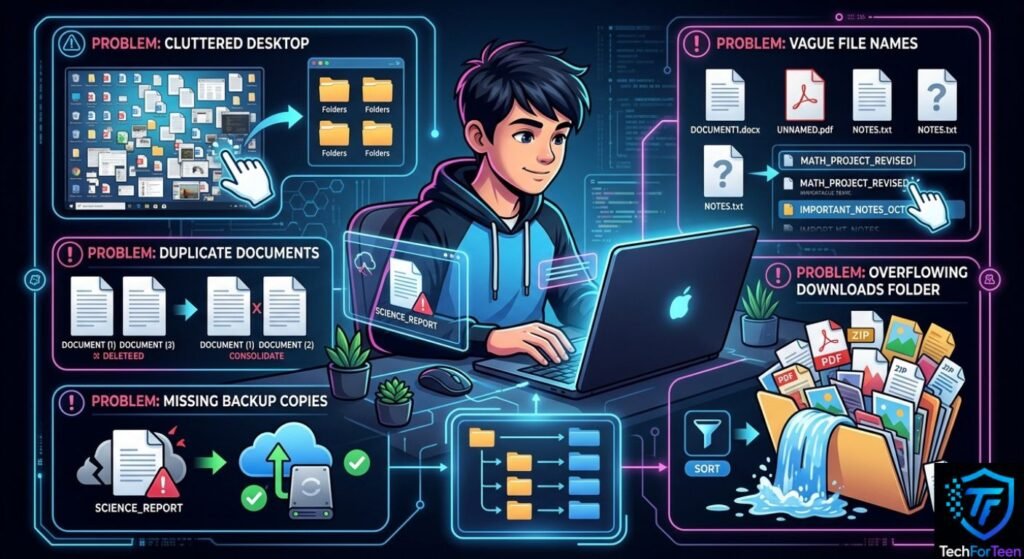
Even a good system can become messy if you make the same mistakes repeatedly.
Saving everything on the desktop
The desktop should not become your main school folder. Move documents into proper folders once you finish using them.
Using vague names
A file called project.docx tells you very little. Add the subject and project name so you can recognize it later.
Creating too many folders
Folders are helpful, but creating five levels of folders for a single worksheet can make files harder to reach.
Keep the structure simple.
Keeping many duplicate files
Multiple copies can waste storage and create confusion about which version is correct.
When possible, remove unnecessary duplicates after checking that the important version is safe.
Never backing up important work
A well-organized file can still be lost. Therefore, make backups of important projects instead of relying on one copy.
A Simple File Organization System for Students

If you want an easy system, start with this:
School
├── English
│ ├── Assignments
│ └── Notes
├── Mathematics
│ ├── Assignments
│ └── Notes
├── Science
│ ├── Assignments
│ └── Projects
├── Computer
│ ├── Notes
│ └── Projects
└── Other
You can change the folders to match your subjects.
For example, if you take art, add an Art folder. If you do not need a particular subject folder, do not create it.
The goal is not to copy someone else’s exact structure. The goal is to build a structure that helps you quickly answer one question: Where should this file go?
File Organization on Different Devices

The basic idea works across computers, although the menus and folder systems can differ.
Windows
File Explorer lets you create folders, move files, rename documents, search for files, and organize storage.
macOS
Finder provides tools for creating folders and organizing documents, downloads, images, and projects.
Chromebook
The Files app lets you manage local files and folders. Google Drive can also be useful for files you need to access across devices.
The important part is consistency. If you use more than one device, try to use similar folder names so your schoolwork remains easy to understand.
A Useful Example for a Student

Imagine a student has English homework, a science project, mathematics worksheets, and a Python project.
Instead of saving everything in Downloads, the student could use:
School
├── English
│ └── Book Report
├── Mathematics
│ └── Fractions
├── Science
│ └── Solar System Project
└── Computer
└── Python Projects
Now each type of work has a clear home.
Later, if the student needs the science presentation, there is no need to search through unrelated downloads. They can simply open School > Science > Solar System Project.
If you want to understand the basics of what a computer does before learning more about file management, What Is a Computer? A Simple Guide is a useful next step.
Tips for Keeping Files Organized Long-Term

Once your folders are organized, the main challenge is keeping them that way.
Follow a few simple habits:
- Save new files directly into the correct folder.
- Use clear names from the beginning.
- Clean Downloads regularly.
- Avoid storing everything on the desktop.
- Remove unnecessary duplicates.
- Keep important files backed up.
- Review old school folders at the end of the school year.
- Delete or archive files you no longer need.
If you regularly use cloud services for schoolwork, remember that your internet connection matters when accessing or syncing online files. Understanding how Wi-Fi works for kids can help you understand why cloud-based school files sometimes depend on a reliable connection.
FAQs
1. Why should students organize files on a computer?
Organized files are easier to find, rename, share, back up, and submit. A simple folder system can also reduce confusion when you have many assignments.
2. What is the best way to organize school files?
Start with one main School folder. Then create folders for subjects and, when necessary, add smaller folders for assignments, notes, projects, or presentations.
3. Should I save school files on my desktop?
It is better to use the desktop for shortcuts or files you are currently working on. Store important schoolwork inside organized folders instead.
4. How should I name school files?
Use names that explain the file clearly. Including the subject, assignment or project name, and version or date when needed can make files easier to identify.
5. How often should students organize their files?
A short weekly cleanup is a good habit. You can also do a larger review at the end of a term or school year.
6. What should I do if I cannot find a file?
Use your computer’s search feature and search for part of the file name or a word you remember from the document. On Windows, File Explorer can search within folders and across your computer.
7. Is organizing files enough to protect my schoolwork?
No. Organization helps you find files, but backups help protect them from data loss. Keep another copy of important work in a suitable backup location.
Conclusion

Learning how to organize files is easy and does not require special software or advanced computer knowledge. Begin by creating a clear folder system, giving files simple and descriptive names, and regularly cleaning up your desktop and Downloads folder. It is also important to back up your important schoolwork so you do not lose it. By making file organization a regular habit, you can spend less time searching for assignments, projects, and documents when you need them.