
How to Check FPS While Gaming
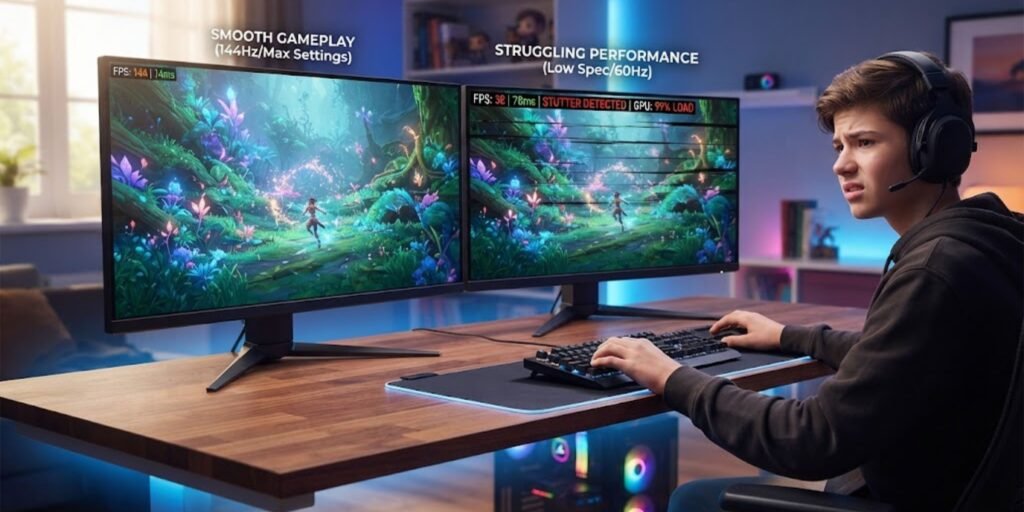
If your game feels slow, stuttery, or less smooth than expected, learning how to check FPS can help you understand what is happening. FPS, or frames per second, tells you how many individual frames your computer produces each second while a game is running. A higher and more stable FPS usually makes movement feel smoother, while sudden drops can make gameplay feel less responsive. Fortunately, you do not always need special software to monitor it. Many games and graphics tools have built-in FPS counters or performance overlays. In this guide, you will learn simple ways to check FPS while gaming, what the numbers mean, and what to do if your FPS is lower than expected.
What Does FPS Mean in Gaming?
FPS stands for frames per second. It measures how many images your computer can render in one second while you play a game.
For example, if a game is running at 60 FPS, your system is producing about 60 frames every second. At 30 FPS, it is producing about half as many frames.
FPS is useful because it gives you a quick idea of game performance. However, the highest number is not always the most important thing. Stable FPS can provide a smoother experience than a high FPS number that constantly jumps up and down.
For example, a game moving between 90 and 40 FPS may feel less consistent than one staying close to 60 FPS.
Why Should You Check FPS While Gaming?
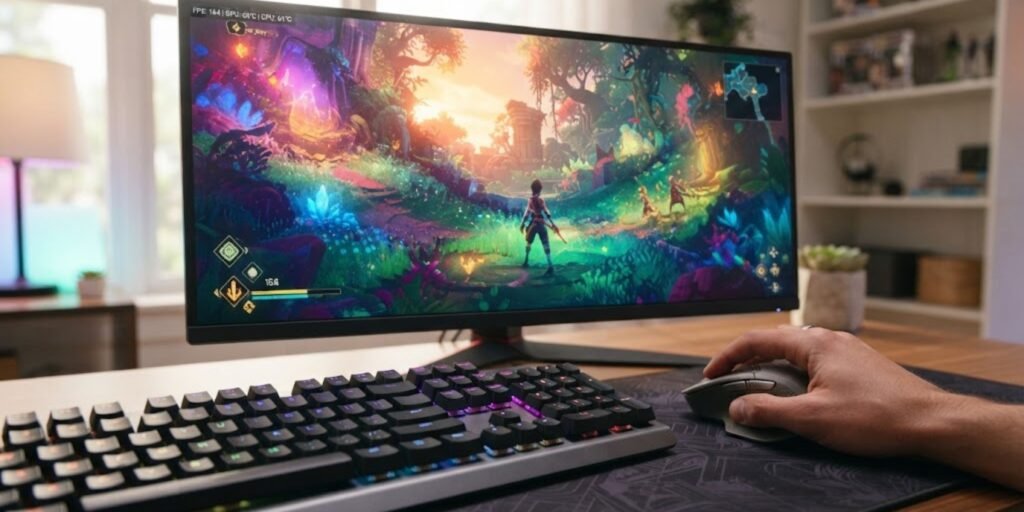
Checking your FPS can help you understand whether your computer is handling a game properly.
It can be especially useful when:
- A game suddenly starts feeling less smooth.
- You change the graphics settings.
- You upgrade your laptop or desktop.
- You want to compare different graphics settings.
- You are troubleshooting stuttering or performance drops.
- You want to see whether lowering resolution improves performance.
FPS can also help you understand the effect of other changes. For instance, if you lower shadows or reduce the game resolution and your FPS increases, those settings were using a noticeable amount of graphics power.
If your game is also experiencing network-related problems, remember that FPS and internet performance are different things. For more help with gaming performance, see our guide on how to reduce lag while gaming on a laptop.
How to Check FPS Using the Game's Built-In Counter
The easiest method is often inside the game itself. Many PC games include an FPS counter in their settings, although the exact location varies between games.
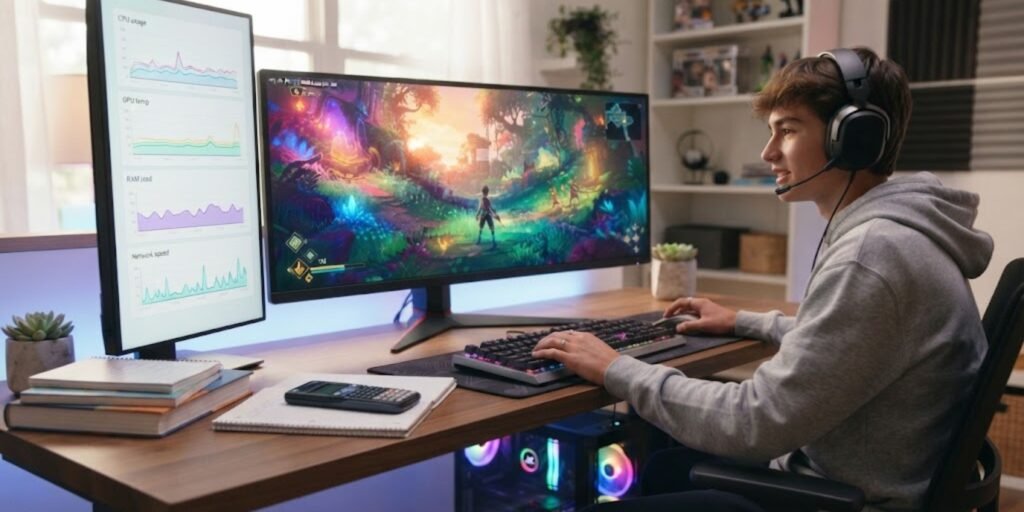
Step 1: Open the Game Settings
Start your game and open its Settings, Options, or Video menu.
Look for sections such as:
- Graphics
- Display
- Video
- Interface
- Performance
- HUD
Step 2: Look for an FPS Option
Search for a setting named something like Show FPS, Display FPS, Performance Statistics, or Frame Rate.
If you find it, turn the option on.
Step 3: Start Playing
Return to the game and look around the screen. The FPS counter may appear in a corner of the display.
This method is convenient because you do not need another program running on top of your game. However, not every game provides an FPS counter.
How to Check FPS on Windows With Xbox Game Bar
Windows users can also use Xbox Game Bar to access gaming-related tools. You can open Game Bar with Windows + G. Microsoft documents Game Bar as a Windows gaming feature, although the exact widgets and available options can change between Windows versions.
If the performance widget is available on your system, you can use it while a game is running to monitor system information. Depending on your Windows setup and available widgets, the information shown may include performance-related measurements.
Basic steps
- Start your game.
- Press Windows + G.
- Look for the performance-related widget.
- Open or pin the widget if available.
- Check the FPS information while playing.
If FPS is not shown, your current Game Bar setup may not provide the required counter. In that situation, an in-game counter or graphics-card overlay may be easier.
How to Check FPS With NVIDIA
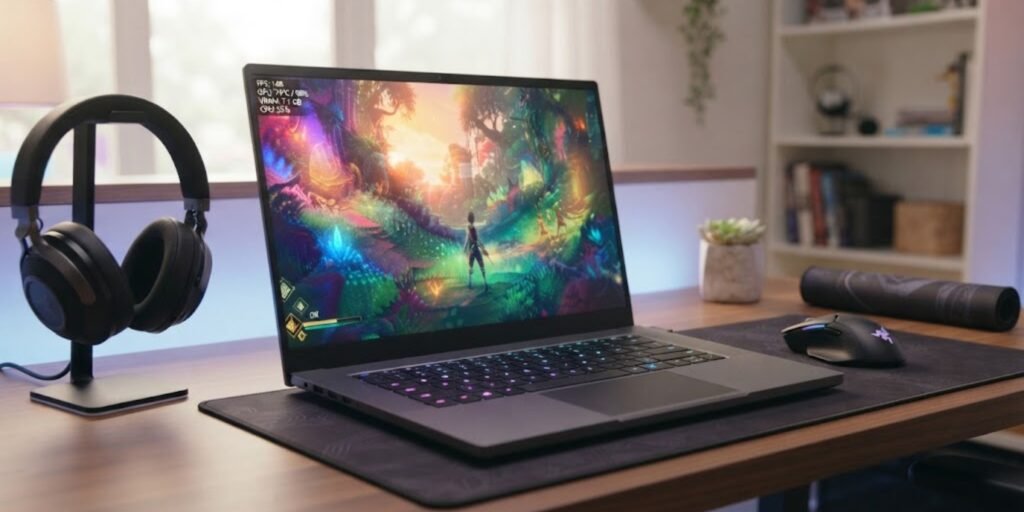
If your computer uses an NVIDIA graphics card, the NVIDIA App provides an in-game overlay with real-time FPS and other performance information. NVIDIA says its overlay can display statistics such as FPS, GPU and CPU utilization, and other performance measurements.
How to use the NVIDIA overlay
- Open the NVIDIA App.
- Make sure the NVIDIA overlay is enabled.
- Start your game.
- Open the NVIDIA overlay.
- Turn on the performance statistics you want to see.
- Return to the game and check the FPS display.
The exact interface can change as NVIDIA updates its app, so the names and locations of options may look slightly different on newer versions.
One useful feature is that NVIDIA’s current overlay can show more than just FPS. Depending on your setup, you may also see GPU usage, CPU usage, FPS 1% Low, and latency information. This can help you understand whether low FPS is caused by a performance problem rather than simply looking at one number.
How to Check FPS With AMD Radeon
AMD graphics users can use AMD Software: Adrenalin Edition to monitor gaming performance. AMD’s performance overlay can display FPS along with other measurements such as GPU utilization, CPU utilization, temperatures, and memory usage.
Basic steps
- Open AMD Software: Adrenalin Edition.
- Open the performance or metrics settings.
- Select the performance metrics you want to display.
- Enable the metrics overlay.
- Start your game.
- Check the FPS shown on the screen.
AMD also allows users to customize which performance measurements appear in the overlay. This can be useful when you want to investigate why a game is slowing down.
Keep in mind that the available options can depend on your AMD hardware, software version, and game. AMD has also documented situations where its performance overlay may report FPS as unavailable in certain games.
How to Check FPS Through Steam
If you play games through Steam, you may also have access to an FPS counter through Steam’s in-game settings. The exact appearance and location of Steam’s settings can change as the platform is updated.
Look through Steam’s In Game settings for the FPS counter option. You can usually choose where the counter appears on your screen.
This is a useful option because you can monitor FPS without depending on the game’s own performance settings.
What Is a Good FPS for Gaming?
There is no single FPS number that is perfect for every game or player.
Here is a simple way to understand common frame rates:
FPS | General Experience |
30 FPS | Playable for many slower games, but may feel less smooth |
60 FPS | Smooth target for many games |
90 FPS | Very smooth on supported displays |
120 FPS | Excellent for many fast-paced games |
144 FPS | Useful for high-refresh-rate gaming |
240+ FPS | Mainly valuable for high-refresh-rate competitive gaming |
These numbers are only general guidelines. Your monitor’s refresh rate also matters. A 144 Hz monitor can display more frames per second than a 60 Hz display, provided your system and game can produce them.
Therefore, do not focus only on reaching the biggest FPS number. A stable frame rate that matches your display can often provide a better experience.
FPS vs Refresh Rate: What Is the Difference?
FPS and refresh rate are related, but they are not the same thing.
FPS describes how many frames your computer produces.
Refresh rate, measured in hertz (Hz), describes how many times your monitor can refresh its image each second.
For example, your PC might produce 120 FPS while your monitor has a 60 Hz refresh rate. The computer is generating more frames than the display can refresh each second.
This does not mean higher FPS is useless. However, the benefits of very high FPS are easier to notice when your display has a higher refresh rate.
What If Your FPS Is Too Low?
If your FPS is lower than expected, do not immediately assume that your computer is broken. Several settings can affect gaming performance.
Try these basic steps:
- Lower demanding graphics settings.
- Reduce the game resolution.
- Close unnecessary background applications.
- Make sure your graphics drivers are updated.
- Check whether the laptop is using the correct graphics processor.
- Keep an eye on CPU and GPU usage.
- Avoid running too many heavy programs while gaming.
If your laptop is generally slow outside games as well, our guide on how to speed up a slow laptop can help you check other possible performance problems.
Should You Always Aim for the Highest FPS?
Not necessarily.
A higher FPS can make gameplay feel smoother, but increasing FPS may require lower graphics quality or more power from your hardware.
For example, you might prefer stable 60 FPS with good visual quality instead of changing several settings just to reach 100 FPS.
Also, some games place more demand on the CPU, while others put more pressure on the GPU. Because of this, the best settings depend on the game and your computer.
If you enjoy competitive gaming, understanding performance can be especially useful. You can also learn more about competitive gaming in our beginner-friendly guide to what e-sports are and how they work.
Tips for Checking FPS Accurately
When comparing FPS, try to make the test fair.
For example, play the same section of a game with similar graphics settings. If you change several settings at once, it becomes harder to know which change affected performance.
It is also useful to watch FPS during demanding moments rather than only checking it while standing still. Busy scenes, large areas, explosions, and multiplayer battles can place more pressure on your hardware.
Most importantly, look for consistency. A stable frame rate can tell you more about your actual gaming experience than one unusually high FPS reading.
Frequently Asked Questions (FAQ)
1. What does FPS mean in gaming?
FPS means frames per second. It shows approximately how many individual frames your computer produces each second while a game is running.
2. How can I check FPS while gaming?
You can use an FPS counter built into the game, Windows gaming tools, Steam, or a graphics-card overlay such as NVIDIA or AMD software.
3. Is 60 FPS good for gaming?
Yes. 60 FPS is a common target for smooth gaming and works well for many games, although the ideal FPS depends on the game and display.
4. Why does my FPS keep changing?
FPS can change because of graphics settings, busy game scenes, CPU or GPU workload, background programs, temperature, or other performance factors.
5. Does higher FPS always mean better gaming?
No. Higher FPS can make gameplay smoother, but stability and your monitor’s refresh rate also matter.
6. Can I check FPS without installing extra software?
Often, yes. Many games have their own FPS counters, and Windows and some gaming platforms also provide performance features.
7. Why is my FPS low even though my game is not using high graphics settings?
A CPU limitation, background processes, thermal problems, drivers, memory limitations, or other system settings can affect FPS even when graphics settings are low.
Conclusion
Learning how to check FPS is a simple way to understand your gaming performance. You can start with the game’s built-in counter, then use Windows, Steam, NVIDIA, or AMD tools when you need more information. Remember that a stable FPS is often more useful than chasing the highest possible number. If your FPS is low, test your graphics settings and check your system before making major changes. With a little monitoring, you can find settings that give you a smoother and more enjoyable gaming experience.