
How to Reduce Ping in Online Games: 10 Easy Fixes
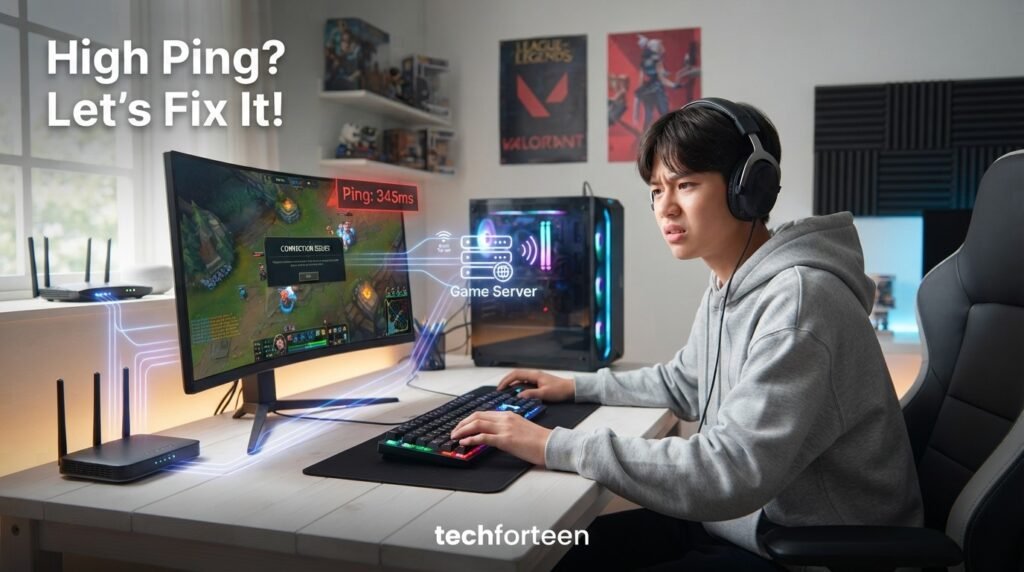
If your online game keeps freezing, teleporting your character, or responding a moment late, high ping may be the problem. Learning how to reduce ping in online games can make multiplayer matches feel more responsive, especially in fast games. Ping measures how long data takes to travel between your device and the game server and back. High ping can come from busy Wi-Fi, a weak signal, a distant server, or connection problems. The good news is that you can test several simple fixes before blaming your gaming PC. This guide explains practical ways to lower ping, reduce spikes, and keep your connection more stable while gaming.
What Is Ping and Why Does It Matter?
Ping is a measure of network response time, usually shown in milliseconds (ms). A lower ping generally means information can travel between your device and the game server more quickly.
For example, 30 ms usually feels more responsive than 150 ms. High ping may appear as delayed actions, rubber-banding, or characters suddenly moving to another position.
If you want the basics first, read our guide on what ping means and how it works.
What Causes High Ping in Online Games?
Before changing settings, find the likely cause. High ping does not always mean your internet package is too slow.
Common causes include:
- A game server far from your location
- Weak or crowded Wi-Fi
- Several devices using the network
- Downloads, cloud backups, or streaming
- Router problems
- Network congestion from your ISP
- An unstable connection or packet loss
- A VPN adding an extra route
Game-server problems can also cause high latency. If the server is having trouble, changing settings on your PC may not solve it.
How to Reduce Ping in Online Games
1. Use Ethernet When Possible
A wired Ethernet connection removes the wireless part of the connection. Connect your PC or console directly to the router and compare your ping with Wi-Fi.
Microsoft recommends trying Ethernet when troubleshooting Wi-Fi connections. If your ping becomes more stable over Ethernet, wireless interference or signal strength may be contributing to the problem.
2. Move Closer to Your Wi-Fi Router
Distance and walls can weaken a wireless signal. If your gaming device is far from the router, try moving it closer and test the connection again.
When available, 5 GHz Wi-Fi can provide faster throughput and is generally less congested than 2.4 GHz. However, 5 GHz has a shorter range. Therefore, it works best when your device is reasonably close to the router.
3. Stop Background Downloads
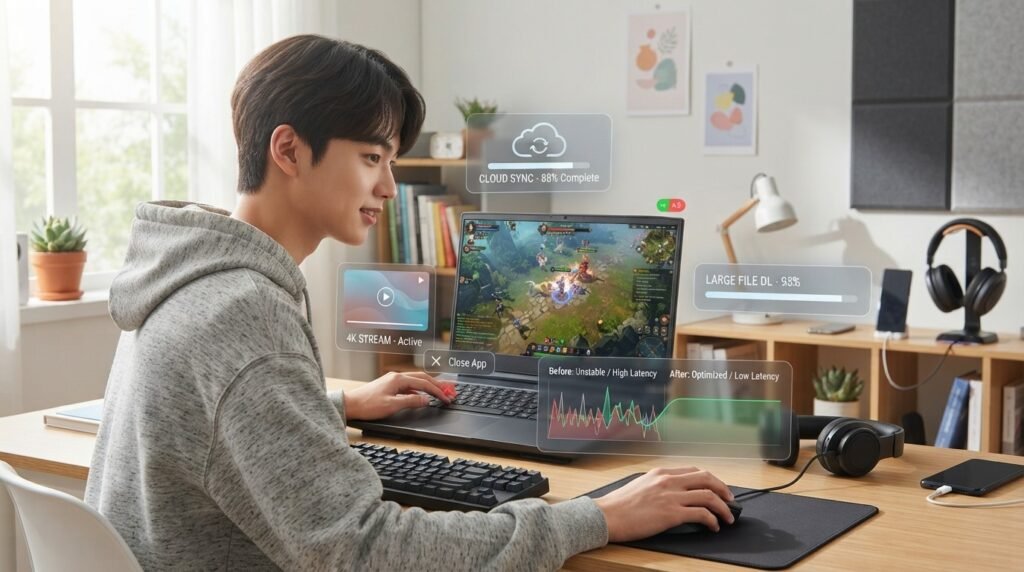
Large downloads, cloud syncing, video streaming, and game updates can compete for network capacity.
Before starting a competitive match, pause unnecessary downloads and close apps that are actively using the internet. Also check whether another device at home is streaming or downloading a large file.
4. Restart Your Router
A router restart can sometimes clear a temporary connection problem. Turn it off, wait briefly, then power it back on and allow the connection to return fully.
5. Choose a Suitable Game Server
Many multiplayer games let you select a server region. When possible, choose a region that is geographically closer to you.
A closer server can reduce the distance your data travels. However, the closest-looking region is not always the fastest route, so compare the ping shown by the game when server choices are available.
6. Test Your VPN
A VPN can send your traffic through another server before it reaches the game. That extra route can sometimes increase latency.
If you use a VPN for a specific need, compare your connection with it connected and disconnected when appropriate. Do not assume that a VPN will automatically lower ping.
7. Reduce Wi-Fi Interference
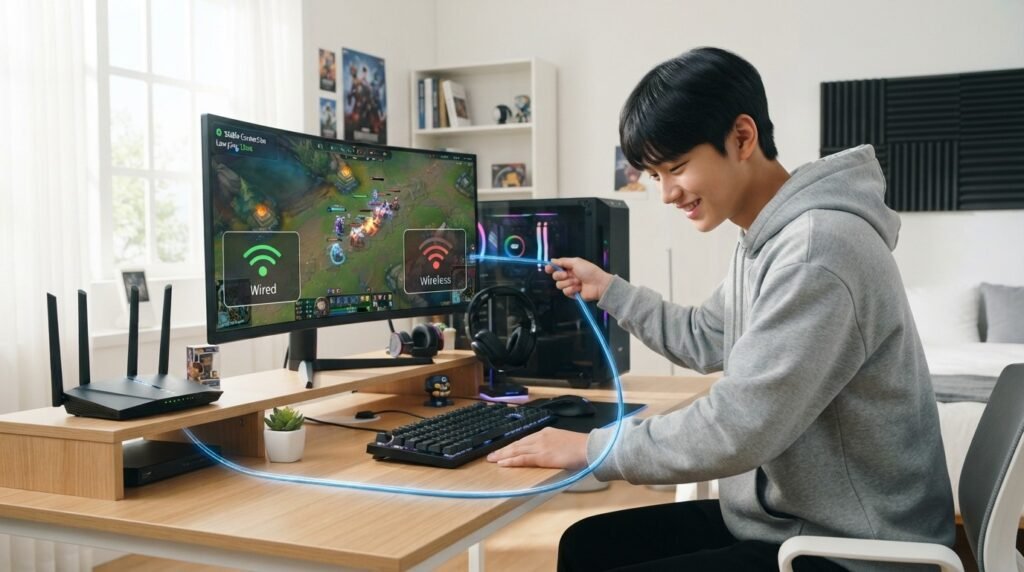
Wi-Fi networks can become crowded, especially in homes or areas with many nearby networks. Other wireless devices can also contribute to congestion.
If possible, use a less crowded band and keep the router in an open location rather than behind furniture or inside a cabinet. If performance changes significantly by location, the wireless signal may be a major factor.
8. Update Network Drivers and Router Firmware
Outdated software can sometimes cause connection or compatibility problems. On Windows, check for network-driver updates through Windows Update or your PC manufacturer’s support tools.
Your router may also have firmware updates from its manufacturer. The exact process depends on the model, so use the manufacturer’s instructions rather than changing settings randomly.
9. Check Ping at Different Times
Do not judge your connection from one number alone. Ping can change throughout the day because network traffic changes.
Check your ping at different times. If it is normally stable but becomes much worse during busy evening hours, congestion may be involved.
Windows also provides a ping command for testing the connection between your PC and router. This can help you determine whether the problem begins inside your home network or farther along the connection.
10. Check FPS and Other Causes of Lag
Ping is important, but it is not the only thing that affects gaming. Packet loss, unstable connections, and low FPS can also make a game feel delayed or choppy.
If your ping looks fine but gameplay still feels rough, check your frame rate and graphics settings. Our guide on how to improve FPS for smoother gaming explains practical ways to improve visual performance.
If the problem is broader gaming lag rather than network latency, how to reduce lag while gaming on a laptop covers additional troubleshooting ideas.
Ping vs. FPS: What Is the Difference?
Ping measures network response time between your device and a game server. FPS, or frames per second, measures how many images your computer renders each second.
High ping can cause delayed online actions even when FPS is high. Low FPS can make a game look choppy even when ping is excellent. That is why improving your internet connection will not automatically fix every gaming problem.
Can Faster Internet Lower Ping?
Not necessarily. A faster internet plan can provide more bandwidth, but ping also depends on server distance, network routing, congestion, and connection quality.
For example, upgrading from one high-speed plan to an even faster plan may not noticeably change latency to a particular game server. However, an overloaded connection can still affect stability.
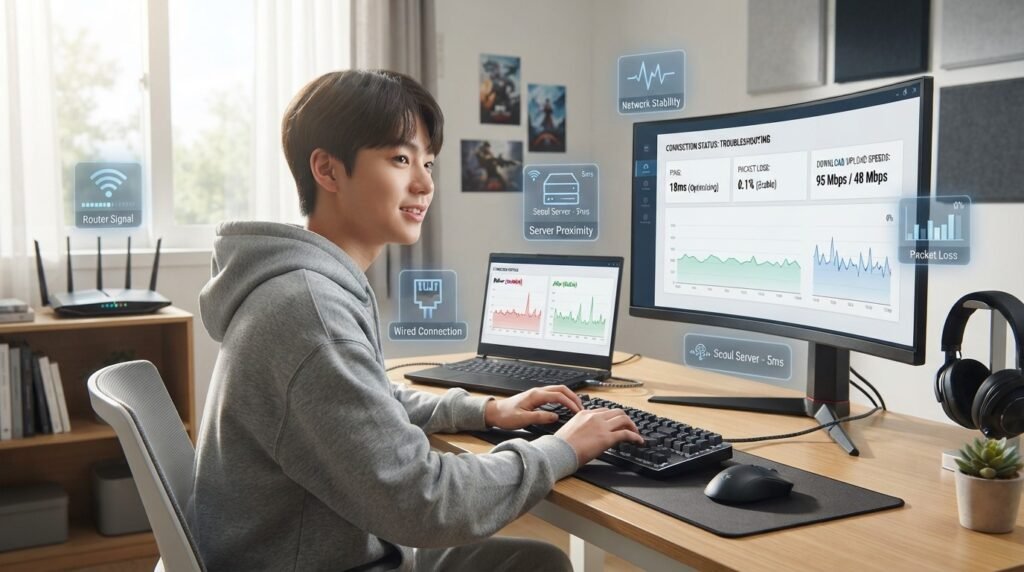
Quick Checklist Before Gaming
If your ping suddenly gets worse, try these steps:
- Check the game’s server region.
- Pause large downloads and uploads.
- Close unnecessary streaming or cloud-sync apps.
- Move closer to the router.
- Try 5 GHz Wi-Fi when your device is close enough.
- Test Ethernet if available.
- Restart the router if the connection is behaving strangely.
- Check whether other devices are using heavy bandwidth.
- Compare ping at different times.
- Check for game-server problems.
When Should You Contact Your ISP?
If high ping continues across different games and devices, the problem may be outside your gaming setup. This is especially worth checking if your connection also drops, becomes unstable, or shows packet loss.
Before contacting your internet provider, collect a few test results at different times. Tell them what you tested and whether Ethernet made a difference.
Frequently Asked Questions (FAQ)
1. Does Ethernet always give lower ping than Wi-Fi?
Not always. Ethernet can provide a more stable connection by removing wireless interference, but ping still depends on the server, routing, and ISP.
2. Does restarting the router reduce ping?
It can help when the router or connection has a temporary problem, but it is not a permanent solution for every high-ping issue.
3. Can closing background apps reduce ping?
It can help when those apps are using significant network bandwidth. Apps that are not using the network may not affect ping.
4. Does a better gaming PC reduce ping?
Usually, no. A faster PC can improve FPS and loading performance, but it does not automatically create a shorter network route.
5. Why is my ping high only at night?
One possible reason is increased network congestion. Compare your ping at different times to see whether the pattern is consistent.
6. Can changing DNS lower gaming ping?
Changing DNS is not a guaranteed way to reduce the latency of an established game connection, so it should not be your first fix.
Conclusion
Learning how to reduce ping in online games starts with finding the actual cause instead of changing random settings. Try the simple fixes first: use Ethernet when possible, improve your Wi-Fi position, stop heavy background traffic, choose a suitable game server, and compare your connection at different times.
Most importantly, ping is only one part of gaming performance. A stable connection, reasonable FPS, and a reliable game server all work together to make online matches feel more responsive.