
How Do I Combine PDF Files? Easy Methods for Students
Making a game in Python can be much easier than it sounds. If you want to make a game in Python, start with a small project instead of trying to build a huge game on your first attempt. Python lets beginners practice variables, loops, conditions, functions, and other programming skills in a readable way. With Pygame, you can create a window, draw objects, read keyboard input, and build a simple game loop. In this guide, you will learn what you need, how Pygame works, how to create a basic game, and what you can add after your first version works.
Why Would You Combine PDF Files?
Merging PDFs is useful when several documents are part of the same project. For example, a student might have a cover page, assignment, and references saved as separate PDFs.
Instead of sending several attachments, you can create one PDF with everything in the correct order. This makes your work easier for a teacher or classmate to review.
Combining files can also help with organization. If you regularly struggle to find school documents, learning how to organize files on your computer can make the whole process easier.
How Do I Combine PDF Files Online?
For a quick option, you can use an online PDF merger. Adobe Acrobat’s online merge tool lets you select multiple PDFs, arrange them, and create one file without installing desktop software. Adobe says its tool works across major browsers and operating systems.
Steps to merge PDFs online
- Open a trusted PDF merging service.
- Select the PDF files you want to combine.
- Upload or drag the files into the tool.
- Check and rearrange their order.
- Select the merge or combine option.
- Download the finished PDF.
For example, if your science project has “Research,” “Experiment,” and “References” as separate PDFs, put them in that order before merging.
For the current Adobe process, see Adobe Acrobat’s official PDF merge guide.
How Do I Combine PDF Files on Windows?

Windows does not provide the same built-in PDF combining workflow as macOS Preview. On Windows, a dedicated PDF application or a trusted online service can be a practical option.
Before starting, put the PDFs in one easy-to-find folder. Give files clear names such as “01 Cover,” “02 Assignment,” and “03 References.” This reduces the chance of using the wrong order.
If you also need to edit a PDF as a Word document, learn how to convert PDF into Word.
A simple Windows workflow
- Create a folder for the project.
- Copy the PDFs into it.
- Rename them with numbers if order matters.
- Open a trusted PDF tool.
- Add the files.
- Review the page order.
- Remove unwanted pages if supported.
- Merge the files.
- Open the final PDF and check it.
Do not assume that files will appear in the order you expect. Always review the final document from the first page to the last.
How Do I Combine PDF Files on a Mac?
Mac users have a built-in option called Preview. Apple explains that Preview can combine PDFs by displaying page thumbnails and letting you drag pages from one PDF into another.
Steps using Preview
- Open the PDFs in Preview.
- Choose View > Thumbnails.
- Select the pages you want to move.
- Drag thumbnails from one PDF into the other.
- Reorder pages if needed.
- Save the combined PDF.
You can also select multiple files in Finder and use Quick Actions > Create PDF. Apple notes that the files appear in the PDF in the order they were selected.
For the official instructions, see Apple’s guide to combining files into a PDF on Mac.
One important detail is that Preview can save changes automatically. Therefore, if you want to keep the original PDFs untouched, make copies before combining them.
How Can I Put PDF Pages in the Right Order?
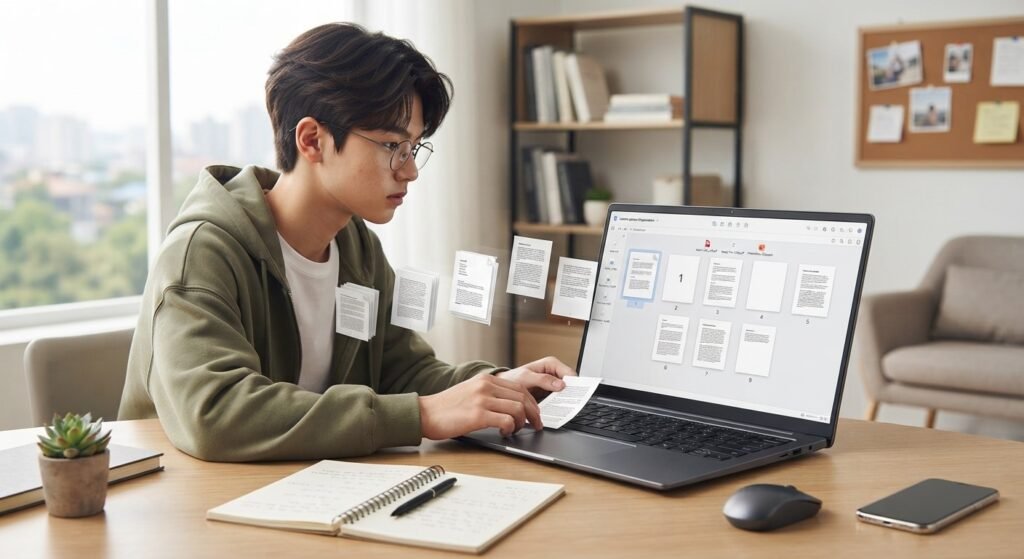
Getting the files into one PDF is only half the job. You should also check whether the pages appear in the correct sequence.
For a school report, a useful order might be:
- Cover page
- Introduction
- Main assignment
- Images or charts
- References
If a PDF contains extra pages, remove them before submitting the final document when your tool supports page deletion. Also check that pages are not sideways or duplicated.
What If I Need to Combine Only Certain Pages?
You do not always need every page from every PDF. For instance, a classmate might send you a 20-page document, but you only need three pages for a group project.
In that situation, use a PDF tool that lets you select or rearrange individual pages. This gives you more control than merging entire files.
On Mac, Preview lets you drag selected page thumbnails between PDFs. With a desktop PDF editor, you may also be able to choose specific pages before creating the final document.
Is It Safe to Combine PDFs Online?
Online PDF tools are convenient, but think about privacy before uploading a file. A normal school worksheet is less sensitive than a document containing personal information or private records.
For sensitive documents, consider using a trusted offline application instead of uploading the file to a website. Also avoid unknown services that ask you to install suspicious software or browser extensions.
Check a service’s privacy information before uploading anything sensitive. Convenience is useful, but protecting your information matters more.
Common Problems When Combining PDF Files
The pages are in the wrong order
Rearrange the files or individual page thumbnails before saving. Numbering your original files can help prevent this problem.
The final PDF is very large
Images and scanned pages can make PDFs much bigger. If the file is too large to upload, look for a compression option. Keep in mind that stronger compression can reduce image quality.
Some pages look different
Different PDFs may use different page sizes, orientations, or image quality. Review the finished document and make sure important content is readable.
A PDF will not merge
A protected or unusual PDF may not work with every tool. Adobe notes that some secure or password-protected files cannot be combined using its web tool.
Tips for Students Before Submitting a Combined PDF
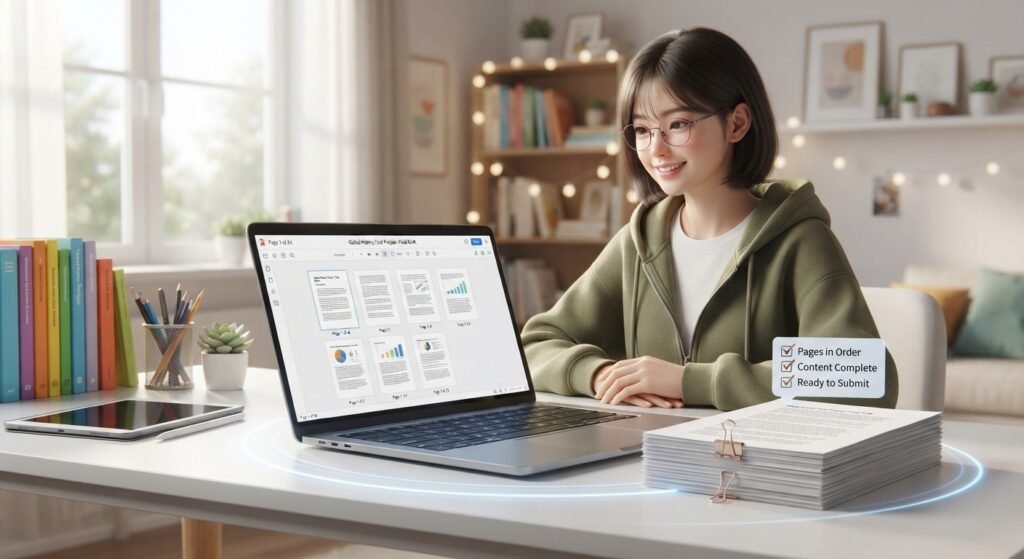
Before sending your final assignment, take one minute to check it:
- Open the combined PDF.
- Check the first and last pages.
- Scroll through the document.
- Confirm the page order.
- Look for missing or duplicate pages.
- Make sure images and text are readable.
- Give the file a clear name, such as “Science_Project_Final.pdf.”
If you use many keyboard shortcuts while organizing files, our guide to Windows keyboard shortcuts for students can help you work faster.
Can I Combine Other File Types Into One PDF?
Some PDF tools can combine more than PDFs. Adobe Acrobat, for example, supports combining PDFs with formats such as Word, Excel, PowerPoint, JPG, and PNG files.
However, the exact options depend on the tool. If you only need to combine PDFs, a simple merger may be all you need.
What Is the Easiest Method?
The easiest method depends on your device.
If you are on a Mac, Preview is convenient because it is already included. On Windows, a trusted PDF application or online merger may be simpler. For a quick task, an online tool can save time, but sensitive documents should be handled carefully.
For any method, the basic process is the same: add the files, arrange them, check the pages, merge them, and review the final PDF.
Frequently Asked Questions (FAQ)
1. How do I combine PDF files for free?
You can use a free online PDF merger or built-in tools such as Preview on Mac. Check the tool’s current features and privacy terms first.
2. Can I combine two PDFs into one?
Yes. Most PDF merging tools can combine two PDFs into a single document, and you can usually choose which file comes first.
3. Can I combine PDFs without installing software?
Yes. Online PDF merging tools work through a web browser. For sensitive files, however, consider an offline option.
4. Can I combine PDF files on a Mac without extra software?
Yes. Preview can combine PDFs using page thumbnails and drag-and-drop.
5. Why is my combined PDF so large?
Large images and scanned pages can increase file size. Compressing the PDF may reduce it, although image quality can change.
6. Can I combine only selected PDF pages?
Yes, if the tool supports page-level organization. You can keep useful pages and leave out the rest.
Conclusion
Learning how to combine PDF files can make school projects, notes, and digital documents easier to manage. Whether you use an online merger, a Windows PDF tool, or Preview on a Mac, arrange the files carefully and check the final document before sharing it.
For students, this simple skill can save time and keep assignments organized. Choose trusted tools and think about privacy before uploading sensitive documents.