
How to Make a Game in Python: Beginner Guide
Making a game in Python can be much easier than it sounds. If you want to make a game in Python, start with a small project instead of trying to build a huge game on your first attempt. Python lets beginners practice variables, loops, conditions, functions, and other programming skills in a readable way. With Pygame, you can create a window, draw objects, read keyboard input, and build a simple game loop. In this guide, you will learn what you need, how Pygame works, how to create a basic game, and what you can add after your first version works.
What Do You Need to Make a Game in Python?
You need:
- Python installed on your computer
- A code editor such as IDLE
- Basic Python knowledge
- Pygame for a graphical 2D game
- A small game idea
If you are new to Python, learn variables, if statements, loops, functions, and lists first. The official Python tutorial is useful when you need to review these basics.
For your first project, avoid a large multiplayer or 3D game. A guessing game, quiz, maze, clicker, or simple arcade game is much easier to finish.
How Does Python Game Development Work?
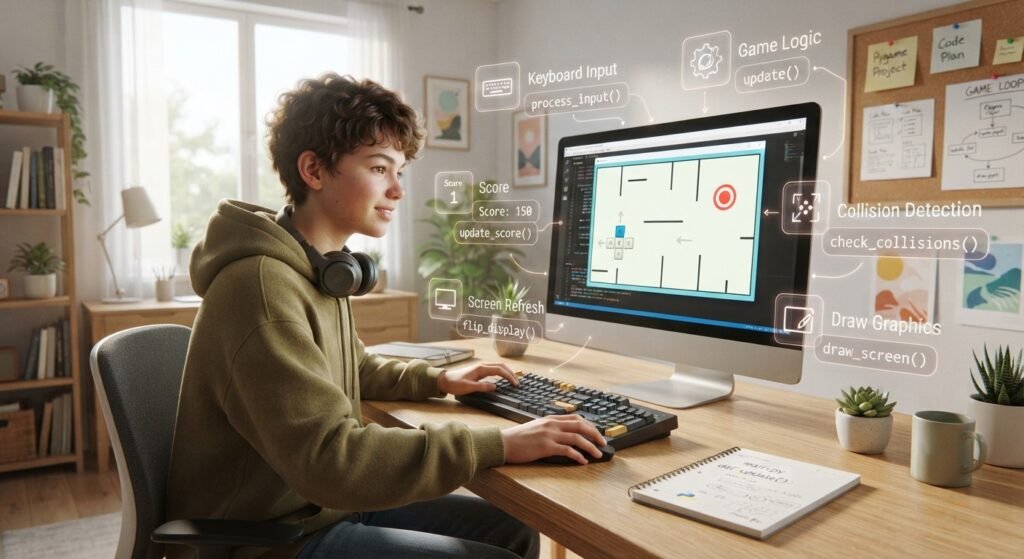
A game repeatedly checks what is happening and updates what the player sees. This is usually handled by a game loop.
A simple loop can:
- Check keyboard or mouse input.
- Move the player.
- Check collisions.
- Update the score.
- Draw the new screen.
- Repeat these actions many times per second.
Pygame provides tools for creating a display, handling events, drawing objects, working with images and sounds, and controlling timing.
Install Pygame Before You Start
Python is a programming language, not a complete game engine. For a beginner-friendly 2D project, Pygame is a useful library.
Open Command Prompt or a terminal and run:
python -m pip install pygame
On some computers, you may need python3 instead of python.
Then test the installation:
import pygame
print(pygame.__version__)
If the import works, you are ready to build your first project.
Make a Simple Game in Python
Let’s build a simple game where you control a square and try to catch a moving target. It’s a beginner-friendly project designed to help you understand how player movement, targets, and basic game logic work together.
Step 1: Create the Game Window
import pygame
pygame.init()
screen = pygame.display.set_mode((800, 500))
pygame.display.set_caption(“Catch the Target”)
clock = pygame.time.Clock()
The screen is the game window. The clock helps control the game’s timing.
Step 2: Create the Player
player = pygame.Rect(370, 220, 60, 60)
speed = 5
The rectangle stores the player’s position and size. The speed variable controls movement.
Step 3: Add Keyboard Controls
keys = pygame.key.get_pressed()
if keys[pygame.K_LEFT]:
player.x -= speed
if keys[pygame.K_RIGHT]:
player.x += speed
if keys[pygame.K_UP]:
player.y -= speed
if keys[pygame.K_DOWN]:
player.y += speed
This checks which arrow key is being held. As a result, the player can move around the window.
Step 4: Build the Game Loop
Now put the controls and drawing inside a loop:
running = True
while running:
for event in pygame.event.get():
if event.type == pygame.QUIT:
running = False
keys = pygame.key.get_pressed()
if keys[pygame.K_LEFT]:
player.x -= speed
if keys[pygame.K_RIGHT]:
player.x += speed
if keys[pygame.K_UP]:
player.y -= speed
if keys[pygame.K_DOWN]:
player.y += speed
screen.fill(“lightblue”)
pygame.draw.rect(screen, “blue”, player)
pygame.display.flip()
clock.tick(60)
pygame.quit()
The event loop checks for actions such as closing the window. Then the program updates the player, clears the old frame, draws the new frame, refreshes the display, and repeats.
The official Pygame documentation demonstrates the same core ideas: initialize Pygame, process events, draw the scene, update the display, and control the frame rate.
Add a Target and Score
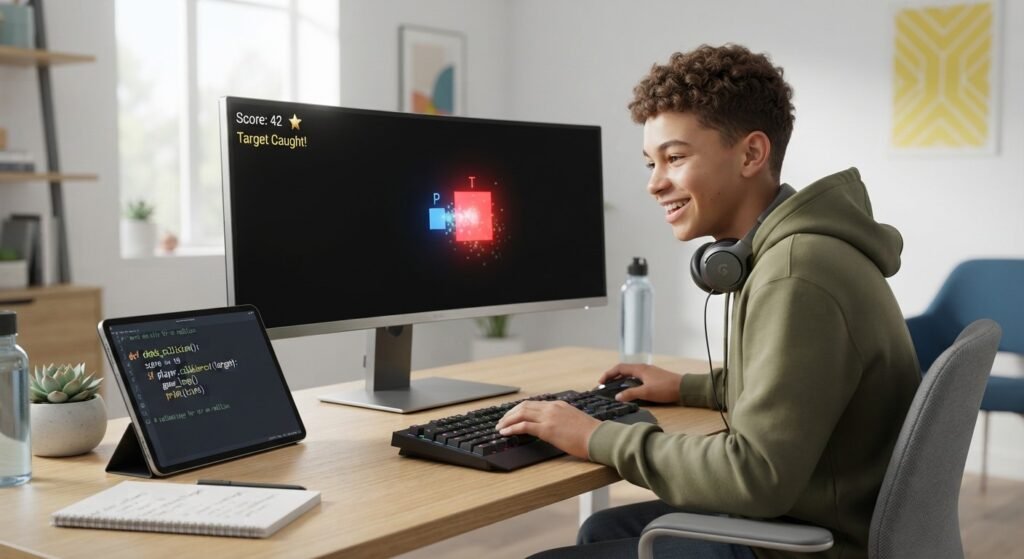
Once movement works, add something for the player to catch:
target = pygame.Rect(100, 100, 40, 40)
score = 0
Draw it with:
pygame.draw.rect(screen, “red”, target)
Then check for a collision:
if player.colliderect(target):
score += 1
You can make the game more interesting by moving the target to a new position after every successful catch. Later, you can display the score and add a timer.
At this stage, you are practicing variables, conditions, loops, keyboard input, collision detection, and drawing. These concepts are useful in many beginner game projects.
How to Improve Your First Python Game
Once the basic version works, add features one at a time:
- A visible score
- A countdown timer
- Different levels
- Faster targets
- Sound effects
- Start and game-over screens
- Player lives
- Images instead of shapes
- A high-score system
You could also make the target smaller after every few points. This creates a simple difficulty system without requiring complicated code.
If you want more beginner Python practice first, try these easy Python project ideas for beginners. Smaller projects can make it easier to understand the code before you build a larger game.
Common Problems Beginners Face
The window closes immediately: Make sure the game loop is running and pygame.quit() is outside the loop.
The player does not move: Check that the keyboard code is inside the game loop.
Objects leave the screen: Add boundary checks so the player’s position stays inside the window.
Pygame cannot be imported: Recheck the installation command and make sure Pygame was installed for the Python version you are running.
The game feels too fast: Use clock.tick() to control the frame rate.
If your computer has gaming performance problems outside your Python project, you can also read this guide about how to reduce lag while gaming on a laptop.
What Python Skills Help With Game Development?
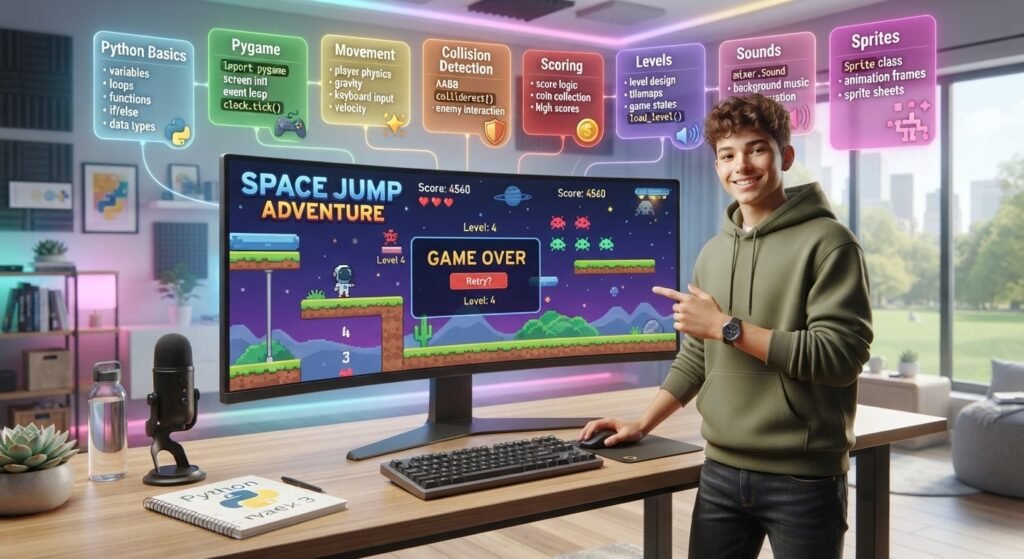
You do not need to know every part of Python before making a game. However, a few skills make the process much easier.
Variables and Conditions
Variables store information such as score, speed, health, and position. if statements let the game react to events, such as a player touching an enemy.
Loops
Loops repeat actions. The main game loop keeps the game active and responsive.
Functions
Functions help organize code. You can create separate functions for movement, drawing, scoring, or resetting the game instead of putting everything into one large block.
Lists and Objects
Lists can store multiple enemies or items. Later, classes and sprites can help you organize larger projects.
If you need more practice with basic Python calculations and input, a Python calculator for beginners is another useful project to try.
Mistakes to Avoid
A common mistake is adding too many features too soon. A beginner may start with a simple game and quickly add enemies, multiple levels, music, menus, and online scores. The project can become difficult before the basic version is finished.
Instead, build a minimum version first. Make the player move, create one clear goal, and make the game end correctly. Then add one feature, test it, and continue.
Also, do not copy code without understanding it. Working examples are helpful, but changing values and testing small pieces yourself will teach you more.
A Simple Learning Path
- Learn basic Python syntax.
- Build small text-based projects.
- Learn Pygame basics.
- Make a simple 2D game.
- Add scoring and levels.
- Learn collision detection and sprites.
- Organize larger projects with functions and classes.
- Add images, sounds, and menus.
- Learn debugging and basic game design.
- Build your own original game idea.
Frequently Asked Questions (FAQ)
1. Can a beginner make a game in Python?
Yes. Beginners can start with quizzes, guessing games, clickers, and simple 2D arcade projects.
2. Is pygame free to use?
Yes. Pygame is an open-source Python library that can be installed with Python’s package tools.
3. Do I need advanced math to make a Python game?
No. Basic games mainly need simple arithmetic, coordinates, conditions, and logic. More advanced games may require more mathematics later.
4. Can I make a 3D game with Python?
Python can be used with some 3D development tools, but beginners usually have an easier time starting with a small 2D project.
5. What should I make first in Python?
Choose a project with one clear goal, such as a guessing game, quiz, clicker, or simple Pygame arcade game.
Conclusion
Learning to make a game in Python is a practical way to turn programming concepts into something interactive. Start small, learn the game loop, add movement and a clear goal, and then improve the project one feature at a time. Pygame can help you practice graphics, input, collision detection, and game logic while strengthening your Python skills. Most importantly, focus on understanding your code instead of rushing to build a huge project. Your first game does not need to be impressive. It just needs to work, teach you something, and give you a foundation for the next one.