
How to Create a Folder in Windows 11 for Students

Learning how to create a folder in Windows 11 is one of the simplest ways to keep your files organized. Whether you are saving school assignments, photos, coding projects, or downloaded documents, folders help you find everything faster. You can create a folder in several places, including the Desktop, Documents, Downloads, and other locations on your computer. Windows 11 also gives you a quick keyboard shortcut if you prefer using your keyboard instead of the mouse. In this guide, you will learn the easiest ways to create a folder, rename it, organize files inside it, and fix common problems that beginners may face.
What Is a Folder in Windows 11?
A folder is a digital container used to organize files and other folders on your computer.
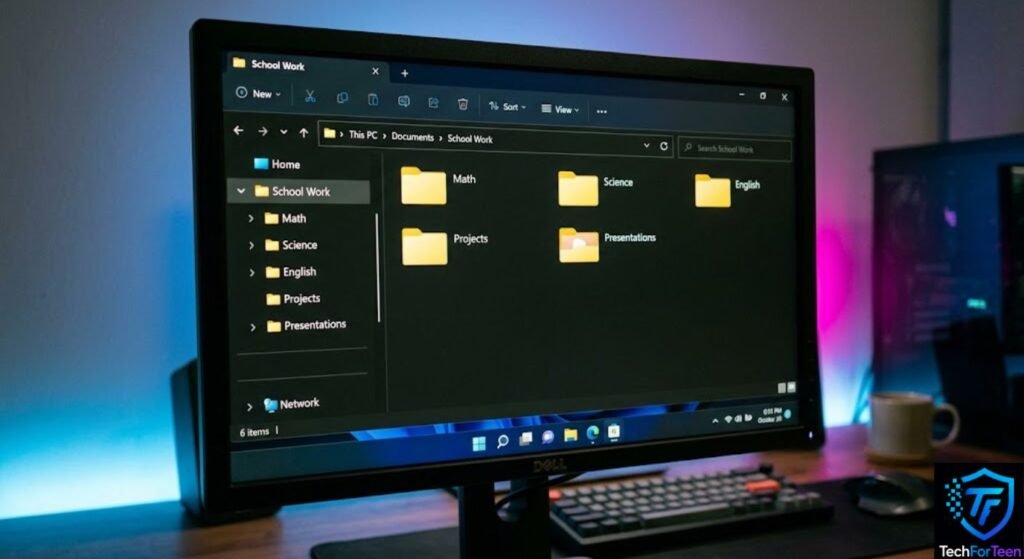
For example, a student could create a folder called School Work and keep assignments, presentations, and notes inside it. You could also create separate folders for subjects such as Math, Science, and Computer Studies.
Good folder organization makes it easier to find your files later instead of searching through a large list of documents.
Windows 11 uses File Explorer to help you browse and manage these folders. You can open File Explorer by pressing Windows + E on your keyboard. Microsoft also provides additional information about using File Explorer and managing files in Windows 11. Microsoft’s File Explorer guide
Creating a New Folder in Windows 11 with File Explorer
File Explorer is one of the easiest places to create a new folder.
Follow these steps:
- Press Windows + E to open File Explorer.
- Go to the location where you want to create the folder.
- Select the New option in File Explorer.
- Select Folder.
- A new folder will appear.
- Type the name you want to use.
- Press Enter.
For example, if you want to organize your schoolwork, you could open Documents and create a folder named School Work.
Microsoft confirms that Windows users can create a new folder through File Explorer by choosing New > Folder and then entering a name. Microsoft’s instructions for creating a new folder
How to Make a New Folder on the Windows 11 Desktop
Windows 11 also lets you make a new folder right on the Desktop.
To do this:
- Go to your Desktop.
- Right-click an empty area.
- Select New.
- Choose Folder.
- Enter a name for the folder.
- Press Enter.
The new folder will appear directly on your Desktop.
This method can be useful when you need quick access to a project or a group of files. However, avoid placing too many folders and files on the Desktop because it can make your workspace difficult to manage.
How to Create a Folder Using a Keyboard Shortcut
If you prefer using the keyboard, Windows 11 has a much faster method.
First, open File Explorer and go to the location where you want the folder. Then press:
Ctrl + Shift + N
Windows will create the new folder, and you can then enter your preferred name.
This shortcut can save time when you create folders frequently. Microsoft lists Ctrl + Shift + N as the Windows shortcut for creating a new folder. Microsoft’s Windows keyboard shortcuts
For example, a student working on several assignments can quickly create folders for different subjects without opening the New menu each time.
How to Rename a New Folder
Once you create a folder, you can easily rename it if needed.
There are several ways to rename it:
- Select the folder.
- Right-click it.
- Choose Rename.
- Type the new name.
- Press Enter.
Alternatively, select the folder and press F2 to rename it.
Try to use clear names that tell you what the folder contains. For example, English Assignment, Minecraft Projects, or Coding Practice is more useful than a name such as New Folder.
How to Organize Files Inside a Folder
Creating a folder is only the first step. You can make your computer easier to use by putting related files together.
For example, a student could organize schoolwork like this:
- School Work
- Math
- Science
- English
- Computer Studies
Inside each subject folder, you could create additional folders for assignments, notes, or projects.
If your computer already contains many files, you may also find it useful to follow a dedicated guide on how to organize files on a computer for students.
The key is to use a structure that makes sense to you. You do not need dozens of folders if a simpler system works better.
How to Create a Folder for Downloads or Projects
Folders are especially useful for downloads and personal projects.
For example, if you are learning programming, you could create a folder called Coding Projects. Inside it, you might create separate folders for Python, HTML, JavaScript, or other projects.
Similarly, you could create a Photos folder and organize pictures by year or event.
If your computer feels slow because you have too many unnecessary files, organizing them can also make it easier to identify what you actually need. You can learn more about improving a slow computer in this guide on how to speed up a slow laptop.
How to Create Folders for Schoolwork
Students can use folders to keep school files separated and easier to find.
A simple system could look like this:
School 2026
- Math
- English
- Science
- Computer Studies
- Projects
- Presentations
You can then place documents, PDFs, images, and other files into the appropriate folder.
For example, instead of keeping every assignment in Downloads, move your finished work into the correct subject folder. This makes it much easier to find an assignment when your teacher asks for it later.
You can also learn the basics of computers in this simple guide to what a computer is.
Common Issues When Making a Folder in Windows 11
Creating a folder usually takes only a few seconds. However, you may sometimes face a small problem while trying to make or save a new folder.
The New Folder Option Is Not Available
If you cannot find the option to create a folder, first check that you are working inside a location such as Documents, Desktop, or Downloads.
You can also try the keyboard shortcut Ctrl + Shift + N. This is a quick way to create a folder without opening the New menu.
Windows Does Not Accept the Folder Name

Windows has some rules for folder names. Certain symbols cannot be used in a file or folder name, including:
\ / : * ? ” < > |
If Windows does not accept your chosen name, remove any restricted symbols and try again.
For example, instead of naming a folder Science: Project, use a name such as Science Project.
You Cannot Make a Folder in a Specific Location
Some areas of Windows may not allow you to create or edit files without the required permission.
If this happens, try creating the folder in a location where you normally save your files, such as Documents or Desktop.
If you still cannot create it, the location may have restrictions that prevent you from making changes.
Simple Tips for Keeping Folders Organized

Creating folders is useful, but using them properly can make your files much easier to manage.
Give Folders Meaningful Names
Choose names that clearly describe what is inside.
Good example: Science Project
Poor example: Stuff
A descriptive name helps you understand the folder’s purpose without opening it.
Do Not Create Too Many Folders
Folders should make file management easier, not more complicated. You do not need a separate folder for every individual file.
Instead, group files that belong to the same subject, project, or activity.
Store Related Files Together
Keep documents, pictures, presentations, and other files that belong to the same project in one suitable location.
For example, a school presentation could have its slides, images, and notes stored inside the same project folder.
Use Subfolders When They Are Helpful
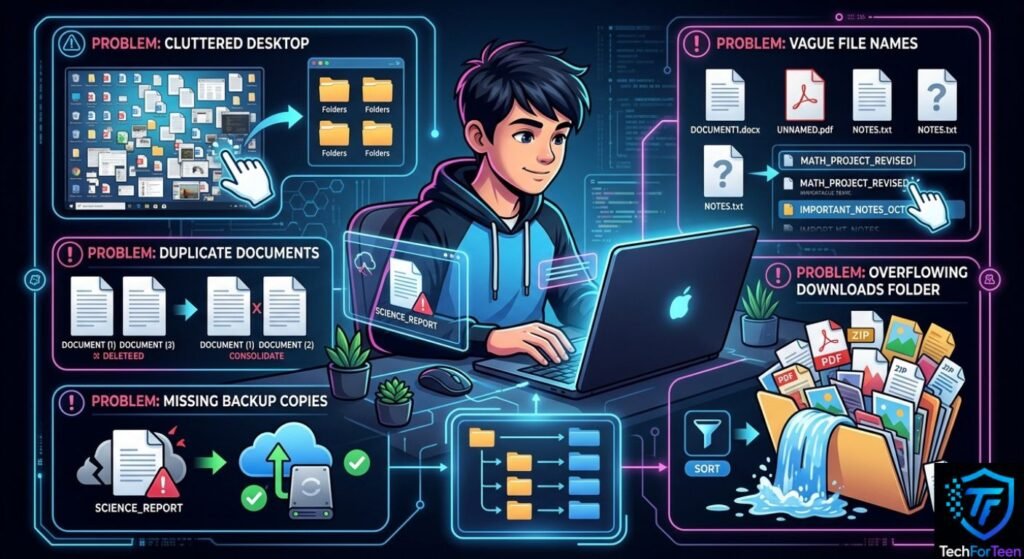
Subfolders can be useful when a main folder contains many different types of files.
For example:
School Work → Science → Projects
However, avoid creating too many levels of folders because finding a file can become inconvenient.
Review Your Folders Regularly
Take some time to remove files you no longer need and move important files to their proper locations.
A quick cleanup every few weeks can prevent your folders from becoming difficult to manage.
Frequently Asked Questions(FAQ)
1. What is the easiest way to create a folder in Windows 11?
Open the location where you want the folder, choose New > Folder, enter a name, and press Enter. You can also use Ctrl + Shift + N.
2. Which keyboard shortcut creates a new folder in Windows 11?
Press Ctrl + Shift + N while you are in File Explorer or another supported location. Windows will create a new folder that you can name immediately.
3. Can I make a folder directly on the Windows 11 Desktop?
Yes. Right-click an empty part of the Desktop, select New, choose Folder, and then enter your preferred name.
4. How can I rename a folder in Windows 11?
Select the folder, right-click it, and choose Rename. Another option is to select the folder and press F2.
5. Is it possible to put one folder inside another folder?
Folders can help students separate assignments, notes, presentations, projects, and other school files. This makes important work easier to locate when it is needed.
6. Why are folders useful for students?
Folders can help students separate assignments, notes, presentations, projects, and other school files. This makes important work easier to locate when it is needed.
Conclusion
Learning how to create a folder in Windows 11 is a simple skill that can make everyday file management much easier. You can make folders through File Explorer, directly from the Desktop, or by using the Ctrl + Shift + N shortcut. For students, organizing assignments, projects, notes, and other school files into clearly named folders can save time and reduce confusion. Start with a simple folder structure and add subfolders only when they are genuinely useful. Once you develop this habit, keeping your Windows 11 files organized becomes much easier.