
How to Transfer Photos from Phone to Laptop Easily

Moving photos from your phone to a laptop is useful when you need to edit pictures, save phone storage, or use images for a school project. The good news is that you do not need advanced computer skills to transfer photos. Android and iPhone users can move pictures with a USB cable, cloud storage, or wireless tools. In this guide, you will learn simple methods for Android and iPhone, including Windows and Mac options. You will also find quick fixes for common connection problems and tips for keeping your photos organized and safe.
How to Transfer Photos from Android to a Windows Laptop
A USB cable is a practical choice when you have many photos.
Use a USB Cable
- Connect your Android phone to the laptop.
- Unlock the phone.
- Open the USB notification.
- Select File Transfer, Transfer files, or a similar option.
- Open File Explorer on Windows.
- Select your phone.
- Open the DCIM folder, where camera photos are commonly stored.
- Select the pictures you need.
- Copy them to a folder on the laptop.
- Wait until the transfer finishes before disconnecting.
You can also use Microsoft Photos. Microsoft says Windows users can connect an Android or iPhone, open Photos, choose Import, select the connected device, and follow the instructions. Microsoft’s photo import instructions
For faster file work, see our guide to Windows keyboard shortcuts every student should know.
Android Phone Is Connected but Photos Do Not Appear
Sometimes the phone charges but does not show its files. Usually, it is still set to charging mode.
Unlock the phone and check the USB notification again. Select File Transfer or another option that allows media access. If it still fails, try another USB port or a different data-capable cable.
How to Transfer Photos from iPhone to Windows Laptop
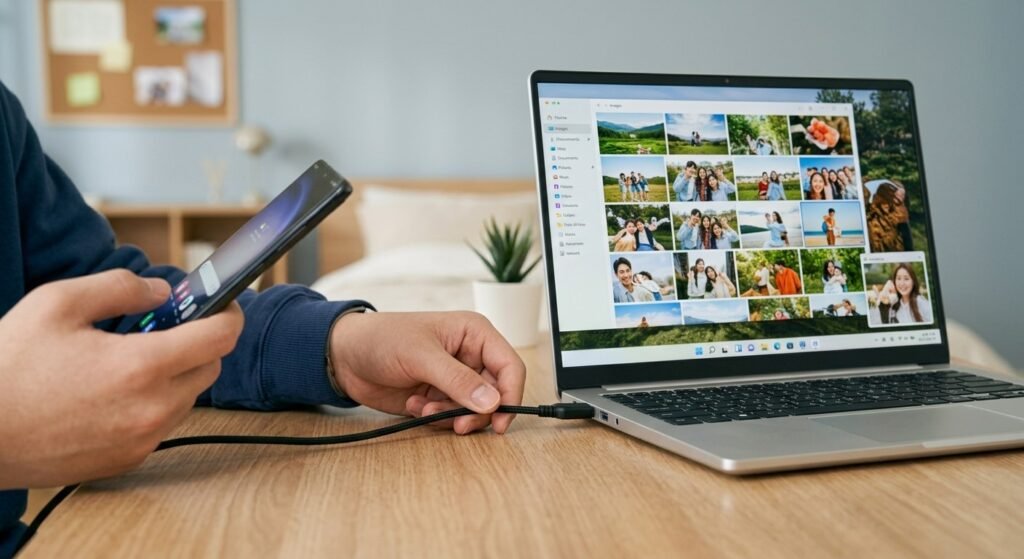
Use USB and Microsoft Photos
- Connect the iPhone to the laptop with a suitable USB or USB-C cable.
- Unlock the iPhone.
- If asked whether you trust the computer, choose Trust or Allow.
- Open the Windows Photos app.
- Select Import and choose the connected iPhone.
- Pick the photos you want.
- Choose where to save them.
- Start the import and wait for it to finish.
How to Transfer Photos Without a USB Cable
Wireless methods can be convenient when you only need a few pictures.
Cloud Storage
Cloud storage lets your phone upload photos online so you can access them from your laptop. Depending on your setup, you can use a service such as OneDrive or another photo backup service.
Open the same account on your laptop, find the pictures, and download what you need. It does depend on your internet connection and available cloud storage.
Phone Link for Android
Windows Phone Link can show recent photos from supported Android phones. It is useful for a few recent pictures.
For a large library, USB is usually more practical.
How to Transfer Photos from iPhone to Mac

If you have an iPhone and a MacBook, you can use the Photos app to import pictures.
Connect the iPhone to the Mac, unlock it, and approve any permission request. Then open Photos, select the connected iPhone, choose the pictures you need, and import them.
iCloud Photos can also sync pictures across supported Apple devices, so manual copying may not always be necessary.
Common Photo Transfer Problems
The Laptop Does Not Detect the Phone
First, unlock your phone and reconnect it. For Android, check the USB mode and select File Transfer. For iPhone, make sure you have approved the computer when prompted.
If the device still does not appear, try another cable or USB port. A damaged or charge-only cable can prevent file access.
Some Photos Are Missing
Your missing photos may be stored in cloud storage rather than locally on the phone. Check your cloud photo service and make sure the original files are available.
For iPhone users, this can happen when iCloud Photos is enabled and an original image is stored in iCloud.
The Transfer Stops
If you are moving hundreds of photos, try smaller groups. Also check that your laptop has enough free storage.
Keep the phone connected until the transfer is complete. Do not remove the cable while files are being copied.
Photos Transfer but Will Not Open
If a transferred image will not open, check its file format and use a compatible photo app or conversion option.
How to Keep Transferred Photos Organized
After you transfer photos, organize them instead of leaving everything in one large folder.
For example:
- Phone Photos
- 2026
- School
- Projects
- Family
- Screenshots
- 2026
Clear folder names make pictures easier to find later, especially for presentations and assignments.
For school documents, see how to combine PDF files with easy methods for students. You can also learn how to convert PDF into Word for students.
Which Transfer Method Should You Use?
The best method depends on your situation.
Method | Best for | Internet |
USB | Large photo collections | No |
Cloud storage | Access across devices | Usually |
Phone Link | Recent Android photos | Wireless |
iCloud Photos | Apple devices | Yes |
USB works well for large collections, while cloud and wireless options are convenient for a few photos.
Tips for Safer Photo Transfers
Use a computer you trust because photos can contain personal information. Keep backups of important pictures so you have another copy if your phone is lost or damaged.
Check that the transfer is complete before deleting pictures. Open a few files on the laptop to confirm they copied correctly.

Frequently Asked Questions (FAQ)
1. What is the easiest way to transfer photos from a phone to a laptop?
A USB cable is often the simplest method, especially for many photos. Connect the phone, unlock it, select the correct USB mode, and copy or import the pictures.
2. Why does my laptop charge my phone but not show the photos?
The cable may only support charging, or the phone may be set to charging mode. Try a data-capable cable and select File Transfer on Android.
3. Can I transfer photos without a cable?
Yes. Cloud storage and wireless tools such as Phone Link can help you access or move photos without USB.
4. Where are Android camera photos stored?
Camera photos are commonly stored in the DCIM folder, although the exact location can vary by phone and camera app.
5. Can I transfer iPhone photos to a Windows laptop?
Yes. Connect the iPhone, unlock it, approve the computer if prompted, and use the Windows Photos import feature.
6. Why are some iPhone photos missing?
Some originals may be stored in iCloud rather than fully downloaded to the phone. Check your iCloud settings or use iCloud for Windows when needed.
Conclusion
Learning how to transfer photos from a phone to a laptop is easier than it seems. USB is useful for large collections, while cloud and wireless options work well for smaller transfers. Keep your phone unlocked when required, use a reliable data cable, and make sure files are copied successfully before deleting anything. Finally, organize important photos into clear folders and keep a backup so your pictures and school projects stay easy to find and safer from accidental loss.