
How to Make Your First HTML Project: Beginner Guide

Starting your first website does not need to feel complicated. If you want to learn how to make your first HTML project, start with a basic webpage and gradually build it by adding different HTML elements step by step. HTML gives a page its structure, so you can use it to add headings, paragraphs, images, links, and lists. For a beginner, the goal is not to create a huge website on day one. Instead, create a small project you understand from top to bottom. In this guide, you will learn what you need, how to create an HTML file, how to write basic HTML, how to open your page in a browser, and how to improve your project with simple ideas.
What Is an HTML Project?
HTML stands for HyperText Markup Language. It is used to structure web content, while CSS is commonly used for appearance and JavaScript can add interactive behavior.
HTML can be understood as the basic framework of a webpage. It uses different elements to organize content, such as headings for titles, paragraphs for regular text, and image elements for displaying pictures.
For your first project, you could create a simple personal introduction page. Add your name, hobbies, goals, an image, and a helpful link. Even a small page like this can be a complete beginner-level web project.
What Do You Need to Start?
The basic requirements are simple: a computer, a web browser, and a code editor or text editor. You do not need expensive software.
Before starting, create a folder called my-first-html-project to keep your files together.
If you are completely new to coding, you can also read our guide on how to start coding as a teenager, which explains how beginners can choose a starting point and learn through small projects.
How to Make Your First HTML Project
We will build a simple “About Me” webpage. It is small enough for a beginner but still teaches several useful HTML elements.
Step 1: Create Your HTML File
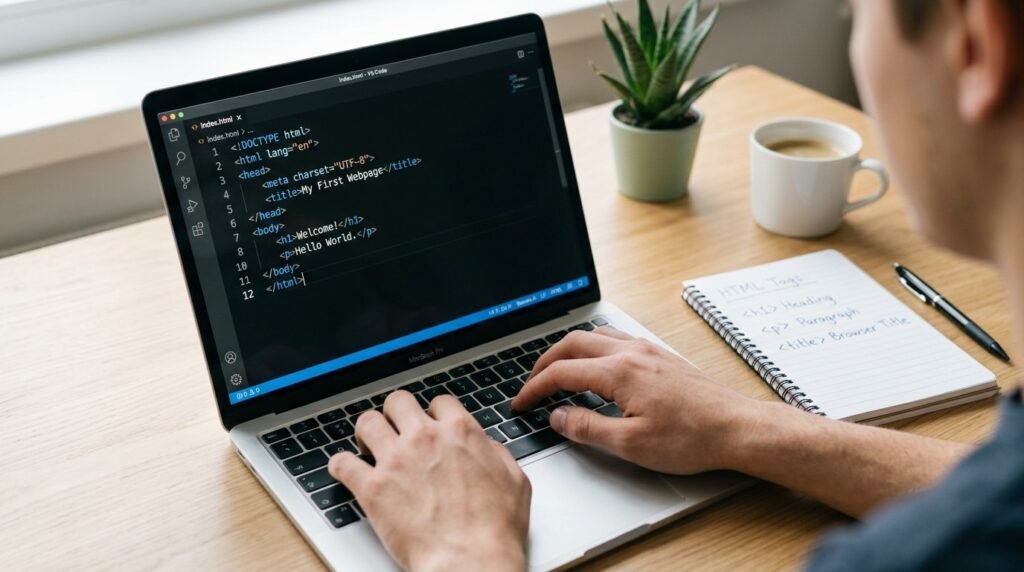
Open your code editor, start a new file, and save it with the name:
index.html
The .html extension lets your computer and web browser recognize the file as an HTML document.
Step 2: Add the Basic HTML Structure
Start with this structure:
<!DOCTYPE html>
<html lang=”en”>
<head>
<meta charset=”UTF-8″>
<title>My First HTML Project</title>
</head>
<body>
<h1>Hello, I’m Alex!</h1>
<p>Welcome to my first webpage.</p>
</body>
</html>
Do not worry if this looks unfamiliar. The head contains information about the page, while the body contains the content visitors see. The h1 creates the main heading, and p creates a paragraph.
A basic HTML document uses elements to organize content, and correct nesting matters when elements are placed inside one another.
Step 3: Add More Content
Now make the page more personal:
<h2>About Me</h2>
<p>I am learning web development and enjoy technology.</p>
<h2>My Hobbies</h2>
<ul>
<li>Drawing</li>
<li>Gaming</li>
<li>Learning coding</li>
</ul>
The h2 creates a section heading. The ul creates an unordered list, while each li represents one item.
These elements help you organize information instead of putting everything into one large paragraph.
Step 4: Add a Link
You can connect your page to another website with an anchor element:
<a href=”https://example.com”>Visit Example</a>
The href attribute specifies the destination that the browser should open when someone clicks the link. Use relevant links and check their destinations before sharing them.
Step 5: Add an Image
You can also add an image to make your webpage more engaging:
<img src=”photo.jpg” alt=”A photo for my webpage”>
The src attribute tells the browser where the image is located. The alt text describes the image and helps when the image cannot be displayed.
If the image is in the same folder, its filename can often be used as the src value. Check the spelling carefully.
Step 6: Open Your Page

Save your changes, then open the index.html file in a web browser to view your page. You should see the heading, paragraphs, list, and image if you added one.
You can edit the file, save it, refresh the browser, and immediately see what changed. Small typing mistakes are normal when you are learning.
What Should You Add to Your First Project?
Once the basic page works, improve it one feature at a time. Try adding a favorite-books section, a list of skills, a second page called projects.html, links between pages, or an image with useful alt text.
If you enjoy building projects, you can later explore another programming language. Our guide to making a game in Python shows how beginners can build a small game with Python.
How to Make Your HTML Project Look Better
HTML creates the structure, but CSS handles much of the visual design. CSS can control colors, spacing, fonts, borders, and page layout.
Once your HTML page works, start learning basic CSS. A separate CSS file can keep your content structure and visual design easier to manage.
Start with simple changes rather than copying a complicated website.
Common HTML Beginner Mistakes
Your first project may not work perfectly. Most beginner problems come from small details.
Forgetting Closing Tags
Some elements need opening and closing tags, such as <p>Hello</p>. If a required closing tag is missing, the browser may not display the page as expected.
Using the Wrong File Extension
A file named index.html is different from index.html.txt. If the browser does not treat your file as a webpage, check its name and extension.
Incorrectly Nesting Elements
HTML elements should be nested properly. If one element starts inside another, close the inner element before closing the outer one.
Using the Wrong File Extension
If an image does not appear, check its filename, folder location, and extension. One spelling mistake can prevent the browser from finding it.
Building Too Much
Your first project should help you learn, not overwhelm you. Start with one page, make it work, and add features gradually.
How to Continue After Your First HTML Project

Finishing your first webpage is only the beginning. A simple learning path is:
- Learn headings, paragraphs, lists, links, and images.
- Practice creating pages without copying every line.
- Learn basic CSS.
- Build a second webpage.
- Connect multiple pages with links.
- Try a simple personal portfolio.
- Explore JavaScript when you are ready for interactive features.
For a deeper reference, MDN’s HTML beginner guide covers modern HTML concepts and beginner tutorials.
You can later expand the page with new sections or another page.
Tips for Improving Your Project
First, keep your files organized and give them clear names. Next, test the page regularly instead of writing hundreds of lines before checking it. Finally, replace sample text with your own ideas so you understand what each part does.
Frequently Asked Questions (FAQ)
1. Is HTML easy for beginners?
HTML is a beginner-friendly way to learn how webpages are structured. You can start with a few elements and gradually learn more.
2. Do I need CSS before making an HTML project?
No. You can create a basic webpage with HTML alone. Add CSS later when you want more control over its design.
3. What should my first HTML project be?
A simple personal webpage is a good choice. Include an introduction, hobbies, a list, an image, and a few useful links.
4. Can I make an HTML project without expensive software?
Yes. You only need a way to create and edit a text file. A simple editor is enough for a basic HTML project.
5. Why is my HTML page showing incorrectly?
Check the file extension, spelling, closing tags, nesting, and image paths. Then save the file and refresh the browser.
6. Can I add images and links to HTML?
Yes. HTML supports elements for images and links. Make sure image paths are correct and links lead to the intended destination.
7. What should I learn after HTML?
CSS is a useful next step for styling. Later, JavaScript can help you add interactive behavior.
Conclusion
Learning how to make your first HTML project is a practical way to begin web development. Start with one simple page, understand what each element does, and test your work as you build.
Do not worry if your first webpage looks basic. The goal is to understand how the pieces fit together. Once the page works, add new sections, learn CSS, connect multiple pages, and gradually take on bigger projects.