
Authentication Issues: Fix 2-Factor Authentication Problems
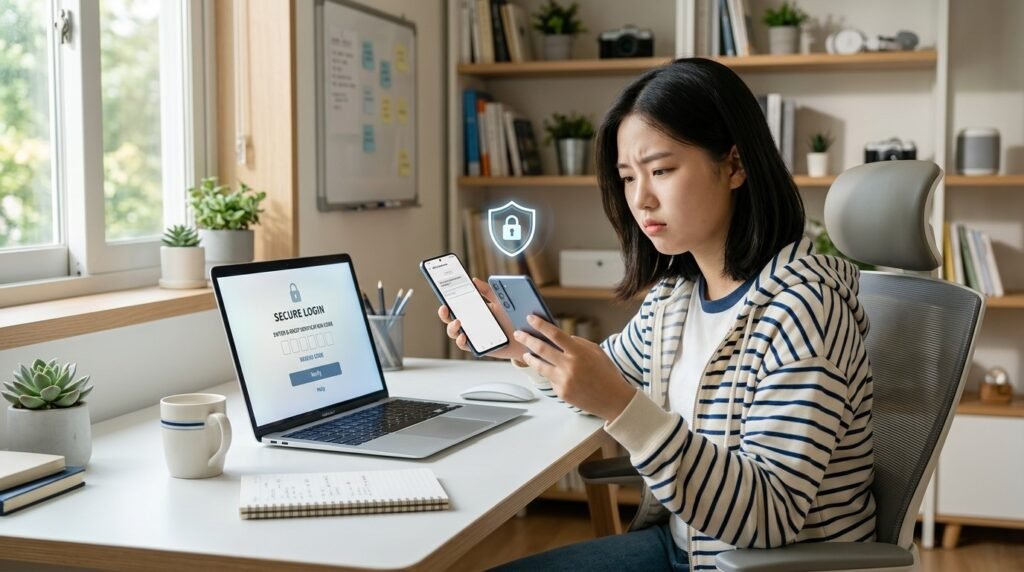
Getting locked out of an account after turning on two-factor authentication can be frustrating. Authentication issues can happen when a verification code does not arrive, an authenticator app rejects a code, you lose your phone, or an old number is still connected to your account. Many 2FA problems can be fixed with a few simple checks. Two-factor authentication adds another layer of security by asking for more than a password when you sign in. In this guide, you will learn why common 2FA problems happen, how to troubleshoot them, how to use recovery options, and how to avoid getting locked out again.
What Is Two-Factor Authentication?
Two-factor authentication, or 2FA, requires two different types of proof before an account lets you sign in.
NIST explains that multifactor authentication uses different factors, such as something you know, something you have, or something you are. Using two passwords alone does not count as two-factor authentication. 2FA can be useful for accounts containing school files, private messages, or personal information.
Why Do Authentication Issues Happen?
2FA problems can have several causes. Sometimes the account service is working normally, but your device, connection, or recovery settings are causing the problem.
Common authentication issues include:
- A verification code does not arrive.
- An SMS code arrives too late.
- An authenticator code is rejected.
- Your phone was lost, replaced, or reset.
- You changed your phone number.
- Your old number is still connected.
- You deleted your authenticator app.
- Your phone’s date or time is incorrect.
- You forgot to save backup codes.
- You cannot access your recovery email.
The solution depends on your 2FA method, so identify the problem before changing security settings.
How to Fix Common 2FA Problems
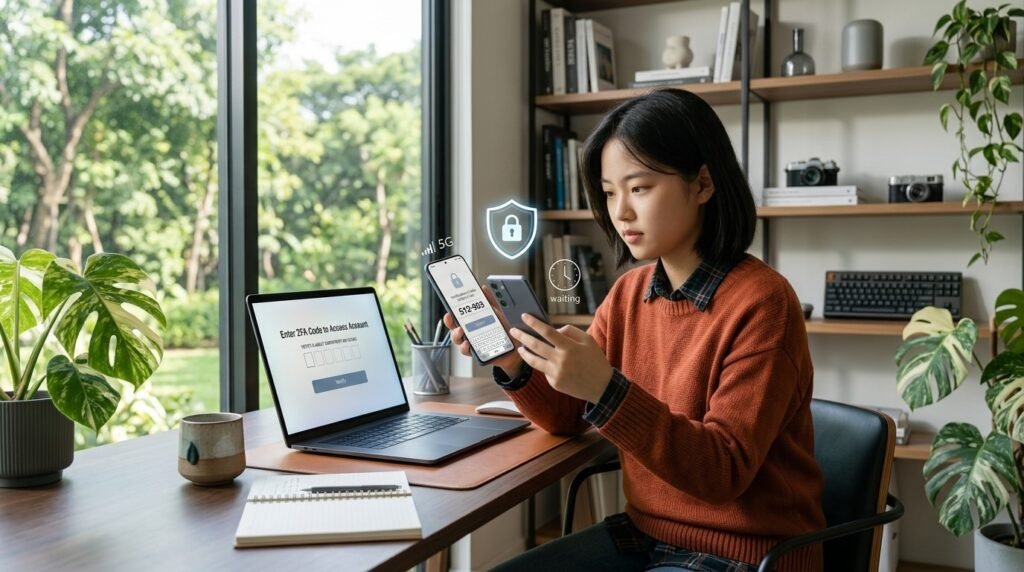
1. Your Verification Code Is Not Arriving
If your account sends codes by text message, check that your phone has a mobile signal and can receive SMS messages. Also make sure the phone number linked to your account is correct. If the verification code does not arrive right away, wait a moment before requesting a new one.
2. Your Authenticator Code Is Not Working
Authenticator apps create temporary codes. If the website rejects a code that looks correct, check your phone’s date and time.
Turn on automatic date and time if your device provides that setting, then try a newly generated code. Also make sure you are using the code for the correct account.
3. You Changed or Lost Your Phone Number
Changing your number can cause problems if your account still expects verification through the old number.
If you can still access the account, update your security information before removing the old number.
Do this before changing SIM cards or getting a new phone.
4. You Lost Your Phone
Losing your phone does not always mean losing your account. Many services provide backup methods for situations where your normal verification device is unavailable.
Google provides backup codes for situations where you cannot use your phone. Each code is intended for one-time use.
If you saved backup codes, use an unused code through the account’s official sign-in process. Never send a backup code to someone who claims to be support.
If you also notice unusual activity on your phone, read our guide on how to know if your phone is hacked and what to do.
How to Use Backup Options Safely
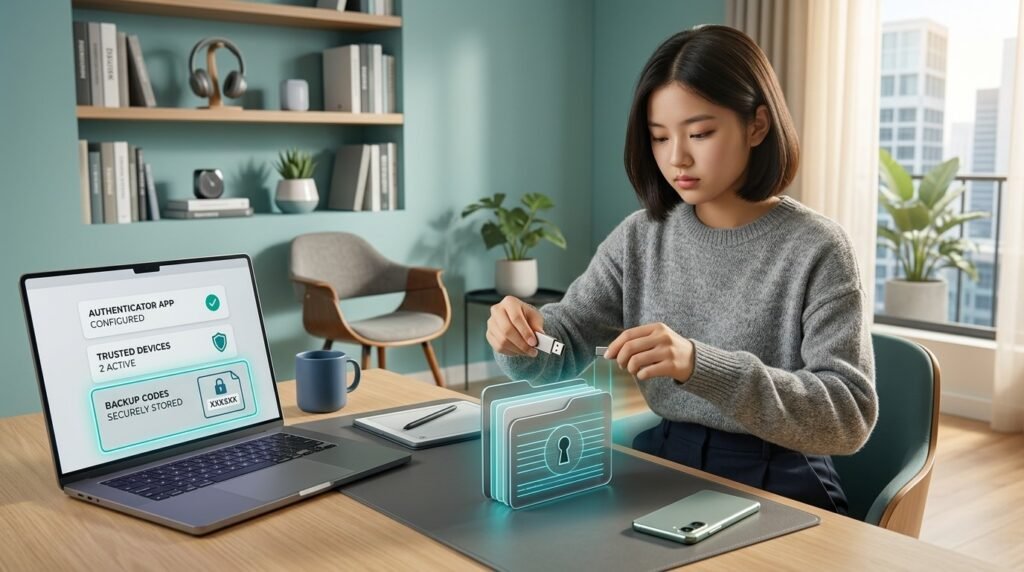
Backup options give you another way to prove account ownership. Depending on the service, they may include backup codes, a recovery email, an authenticator app, a trusted device, or a security key.
Keep Backup Codes Private
Treat backup codes like sensitive account information. Store them somewhere private and protected.
Do not post them online, send them in a group chat, or give them to someone who says they need the codes to verify your account. A stranger should never need your private login code.
Keep Recovery Information Updated
Review your recovery email address and phone number occasionally. If you no longer use an old email address or number, update it while you still have access.
You can also review Google’s official guidance on 2-Step Verification and backup options to understand how recovery methods work on Google accounts.
What If You Get an Unexpected Verification Request?
An unexpected verification request does not automatically mean your account has been hacked. However, never approve a request you did not start.
Someone may know your password and be attempting to sign in. Instead, reject the request and review your account’s security activity through the official app or website.
Can You Turn Off 2FA?
Some services allow you to turn off two-factor authentication. However, removing 2FA also removes an extra security layer.
If 2FA is causing problems, first check whether the service offers another verification method. An authenticator app may work when SMS is unreliable, while backup codes can help when your phone is unavailable.
Try to fix the authentication method before removing an important security feature.
How to Prevent Future Authentication Issues
Set Up More Than One Recovery Method
If a service allows multiple options, consider setting up more than one. You might use an authenticator app and keep backup codes stored safely.
Update Security Settings Before Changing Devices
Before getting rid of an old phone, check your important accounts. Make sure your new device or another recovery method is ready before removing the old one.
Protect Your Password Too
2FA is not a replacement for a strong, unique password.
Be Careful With 2FA Scams
Scammers may try to convince you to share a verification code. A message might claim that your account has a problem and ask you to send the code you just received.
Do not share verification codes with strangers. Avoid clicking suspicious login links in unexpected messages.
If you want to learn more about suspicious messages, read our guide on how to spot and avoid scam messages.
Fake accounts can also pretend to be friends, creators, or support staff. Learn how to identify a fake Instagram account before trusting an unfamiliar profile.

A Simple 2FA Troubleshooting Checklist
When you cannot sign in, work through these steps:
- Check your username and password.
- Make sure your phone has a working connection if you use SMS.
- Check your phone’s date and time.
- Confirm that the code belongs to the correct account.
- Try another official verification method.
- Use an unused backup code if available.
- Check your recovery email or trusted device.
- Use the service’s official account recovery process if needed.
Avoid websites or people promising to “unlock” your account. Account recovery should be completed through the official service.
Frequently Asked Questions (FAQ)
1. What are authentication issues?
Authentication issues are problems that stop a service from confirming that you are the person trying to sign in. With 2FA, this can include missing codes, rejected codes, lost phones, or unavailable recovery methods.
2. Why is my 2FA code not working?
Check the account, phone time, and verification method first. If the problem continues, try another official method or an unused backup code.
3. What should I do if I lose my phone?
Use an available backup method, such as a backup code, recovery email, trusted device, or another approved option. If none works, use official account recovery.
4. Are backup codes safe?
They can be safe when stored privately. Treat them like sensitive account information and never share them.
5. Should I turn off 2FA if it causes problems?
Try another verification method first. Turning off 2FA removes an additional layer of account protection.
6. Can someone use my 2FA code to access my account?
A verification code can help complete a sign-in attempt, so never share one with someone who asks unexpectedly.
7. Is an authenticator app better than SMS?
They work differently. An authenticator app generates codes on your device, while SMS depends on text-message delivery. The best option depends on the account.
Conclusion
Authentication issues can be annoying, but many 2FA problems can be fixed by checking your device, verification method, and recovery options. Keep recovery information updated, store backup codes securely, and never share verification codes with strangers. Most importantly, prepare a backup method before you lose access to your usual device. A few minutes spent checking your security settings now can save you from a much bigger login problem later.