
How to Make a Personal Website With HTML
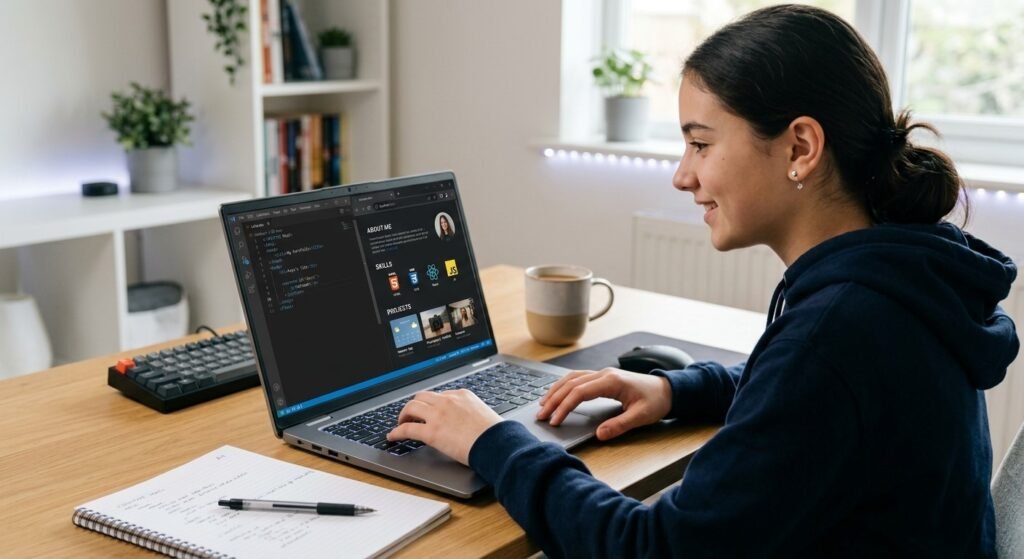
If you want to learn how to make a personal website, HTML is one of the easiest places to start. You do not need advanced programming skills or expensive software to build a simple page about yourself. With a code editor and a web browser, you can create a homepage that introduces your interests, projects, skills, and goals. HTML gives the page its structure, while CSS can improve its design and JavaScript can add interactive features. In this guide, you will learn what you need, how to create your first HTML file, what sections to include, how to test your page, and how to improve it as your web development skills grow.
What Do You Need to Make a Personal Website?
Before you begin coding, make sure you have:
– A desktop computer or laptop
– Software for editing code
– An up-to-date web browser
– A folder to keep your website documents and resources
– A topic or content idea for your webpage
A code editor helps you write and manage HTML in a clear, organized way. When your page is ready, save the HTML file on your computer and open it in a browser to check how it appears.
HTML is the language used to organize the content of a webpage. It allows you to add elements such as titles, text paragraphs, pictures, clickable links, and lists.
Plan Your Personal Website First
Before coding, decide what your website should say about you. A simple one-page portfolio can be enough for a beginner.
Consider adding your name, a short introduction, hobbies, learning achievements, projects, skills, and a way for visitors to contact you.
For example, a student learning web development could create a homepage with an introduction, projects, and links to useful work. If you are interested in the career side of web design, you can also read our guide on whether web design is still in demand.
Create Your First HTML File
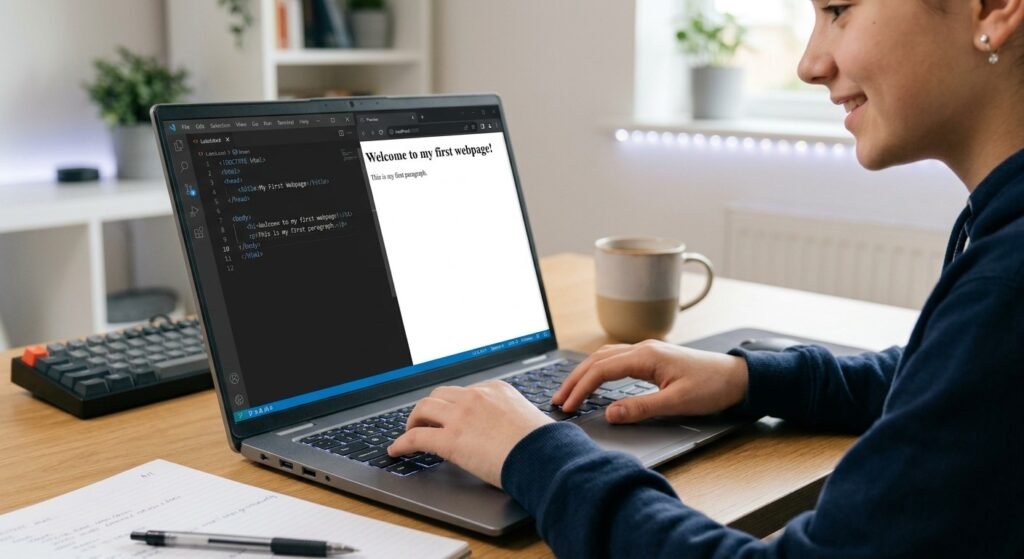
Create a folder called personal-website. Inside it, create a file named index.html. This filename is commonly used for a website’s homepage.
Add this basic structure:
<!doctype html>
<html lang=”en”>
<head>
<meta charset=”utf-8″>
<meta name=”viewport” content=”width=device-width, initial-scale=1″>
<title>My Personal Website</title>
</head>
<body>
<h1>Hello, I’m Alex</h1>
<p>I’m a student learning web development.</p>
</body>
</html>
Save the file, then open index.html in your browser. You should see the heading and paragraph.
The head contains information about the page, while the body contains the content visitors see. The title controls the text shown in the browser tab. For more beginner guidance, check the MDN HTML basics guide.
Add Useful Sections to Your Homepage
Once the basic page works, add sections that tell visitors more about you.
<h2>About Me</h2>
<p>I enjoy learning coding and creating small web projects.</p>
<h2>My Skills</h2>
<p>HTML, basic CSS, and beginner JavaScript.</p>
<h2>My Projects</h2>
<p>I am building a simple study planner website.</p>
You can also use lists:
<ul>
<li>HTML</li>
<li>CSS</li>
<li>JavaScript</li>
</ul>
Keep each section focused so the homepage is easy to scan.
Add Images and Links
HTML lets you add images and hyperlinks to your page.
<img src=”profile.jpg” alt=”Profile photo”>
Keep the image inside your project folder, or use the correct file path. The alt text describes the image and supports accessibility.
You can also add a project link:
<a href=”https://example.com”>Visit my project</a>
Only share information that you are comfortable making public. Avoid putting private details such as your home address or personal phone number on a public website.
Make the Website Look Better With CSS
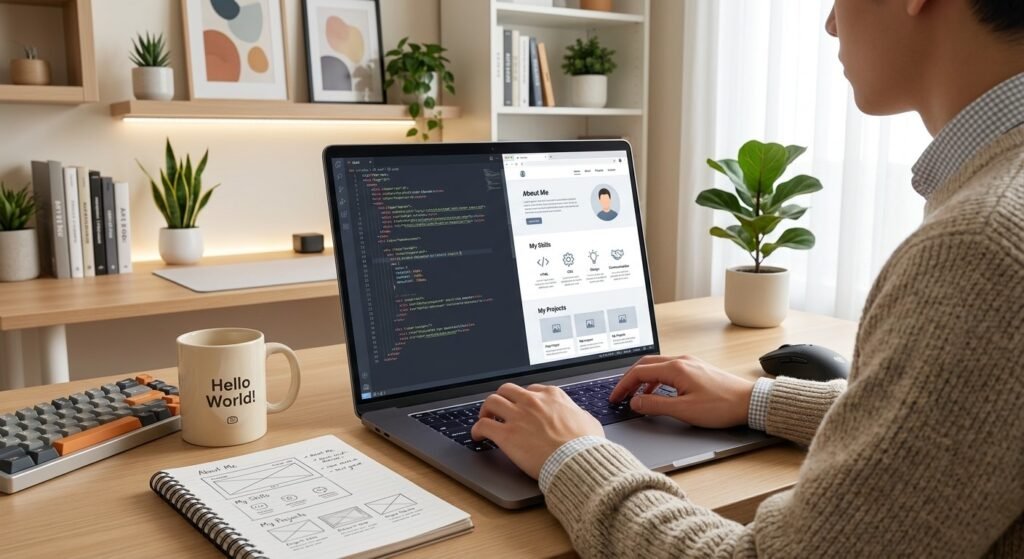
HTML creates the structure, while CSS controls much of the visual design. It can change colors, fonts, spacing, backgrounds, and layouts.
Create a file named style.css and connect it to your HTML:
<link rel=”stylesheet” href=”style.css”>
As a result, your page can become cleaner and easier to read. After learning the basics, explore responsive layouts for different screen sizes.
Test Your Website Before Sharing It
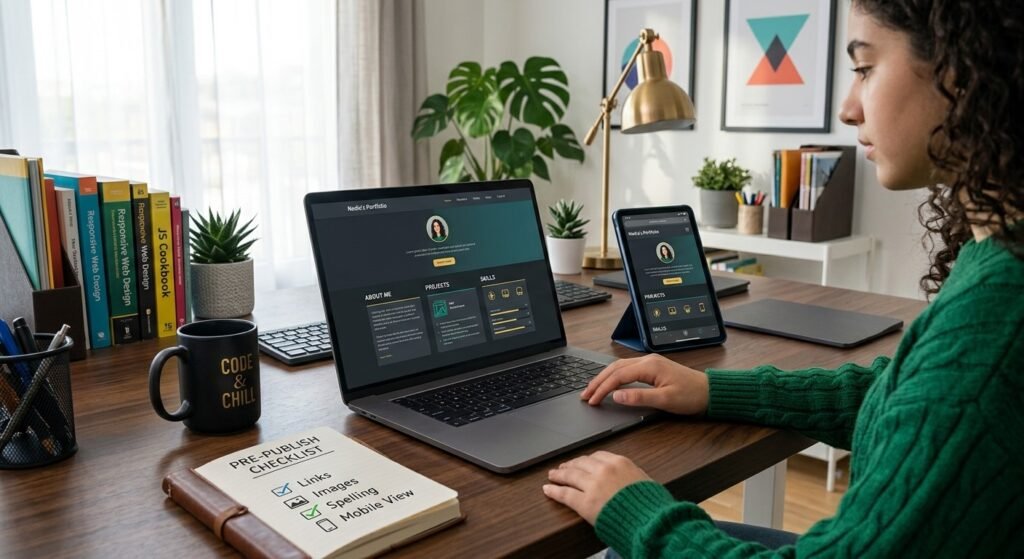
Before you publish your webpage, open it in a browser and review each section carefully.
Look for these common issues:
Spelling and typing mistakes
Links that do not work
Images that fail to load
Incorrect image or file paths
HTML tags that have not been closed properly
Text that is hard to read on mobile devices
Next, make the browser window smaller to see how your page looks on different screen sizes. If an image is missing, verify that its filename, file extension, and folder path match the details in your HTML code.
Publish Your Personal Website
After testing, you can put your website online using a hosting service. You will generally need your website files, a place to host them, and a domain name if you want a custom web address.
If you are new to publishing, start with a small project and learn the process step by step. The W3C HTML standards information can help you understand the technology behind web pages.
As your skills improve, your website can grow from one HTML page into a portfolio. You might add project pages, navigation, responsive design, and JavaScript features.
If you want to understand the path from beginner projects to web development, our guide on how to become a web developer can help you explore the next steps.
Common Beginner Mistakes to Avoid
When learning how to make a personal website, beginners often try to add too many features too quickly. Start small and improve the site gradually.
Avoid:
- Copying code without understanding it
- Using very large images
- Forgetting useful alt text
- Sharing private information
- Creating confusing navigation
- Ignoring mobile users
- Trying to learn HTML, CSS, and JavaScript all at once
Instead, learn one skill at a time, starting with headings and paragraphs, then links, images, and CSS.
What Should You Learn After HTML?
HTML is a strong starting point, but a personal website can teach you much more. After basic HTML, move on to CSS so you can control the design. Then learn JavaScript when you are ready to add interactive behavior.
You can also explore skills teenagers need for future jobs, especially if you want your website to become part of a larger learning or career portfolio.
Building small projects gives you practical experience. Keep your code organized and save older versions so you can see your progress.
How to Choose the Right Skills
The right skills depend on a student’s interests and goals. Someone interested in software may focus on coding, AI, and problem-solving. A future designer might combine creativity with digital tools. A student interested in business could focus on communication, teamwork, data, and organization.
It is also useful to combine technical and human skills. Coding plus communication can help a developer explain ideas, while AI literacy plus critical thinking supports responsible technology use.
Students can also learn through projects, clubs, competitions, volunteering, and online courses. For another perspective on technology careers, see whether web design is still in demand.
Frequently Asked Questions (FAQ)
1. Can I make a personal website with only HTML?
Yes. You can create a basic working website with HTML alone. CSS and JavaScript are optional additions for design and interactivity.
2. Do I need programming knowledge before learning HTML?
No. HTML is beginner-friendly. Start with headings, paragraphs, links, images, and lists.
3. What file should I create first?
For a simple website, create an index.html file. It is commonly used as the homepage.
4. Can I make a personal website for free?
Yes. You can create and test website files on your computer for free. Publishing options depend on the hosting service you choose.
Conclusion
Learning how to make a personal website with HTML is a practical way to start web development. Begin with a simple index.html file, add clear sections about yourself, test your links and images, and then use CSS to improve the design. Most importantly, build small projects instead of trying to create a complicated site immediately. With practice, your first personal page can become a useful portfolio that shows what you have learned and what you can create.