
How to fix a Freezinng Game on a Laptop
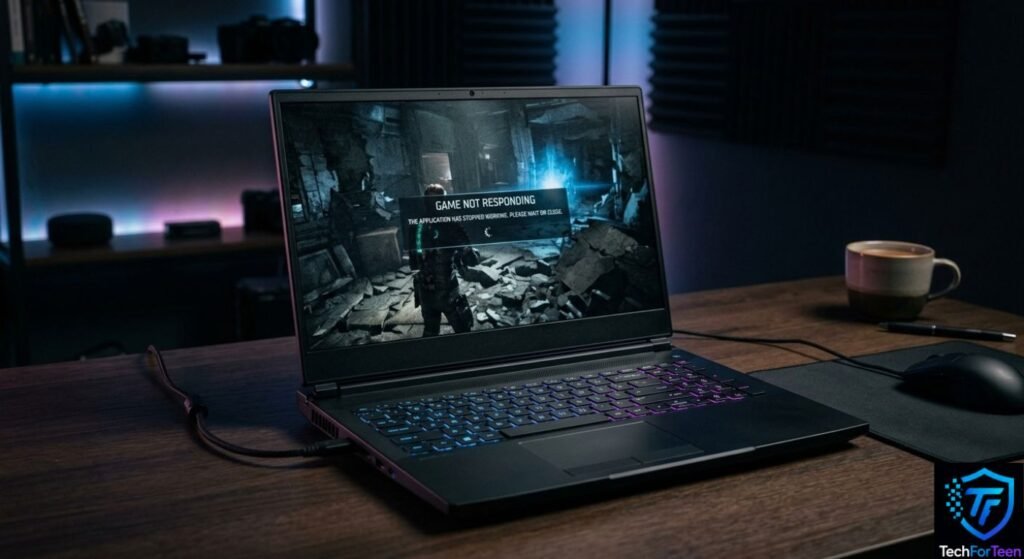
A freezing game can turn a fun gaming session into a frustrating problem, especially when your laptop suddenly stops responding or the game becomes stuck. Sometimes the cause is simple, such as too many background programs using system resources. In other cases, outdated drivers, high graphics settings, overheating, low storage, or damaged game files may be involved. The good news is that you can check several things before assuming your laptop needs an upgrade. In this guide, you will learn practical ways to find the cause of a freezing game and fix it. These steps are suitable for beginners and can help with many Windows gaming problems.
Why Does a Game Freeze on a Laptop?
A game can freeze for several different reasons. Finding the likely cause makes troubleshooting much easier.
Common causes include:
- Too many programs running in the background
- High graphics settings
- Outdated graphics drivers
- Limited RAM or system resources
- Overheating
- Low free storage space
- Damaged or missing game files
- Windows or game compatibility problems
- An unstable internet connection in online games
A complete freeze is also different from normal lag. If your character takes longer to respond but the game continues running, the problem may be related to network latency. You can learn more about this in our guide on how to reduce ping in online games.
1. Restart Your Laptop
Start with the simplest solution. Close the game and restart your laptop.
A restart clears temporary system activity and gives Windows a fresh session. After restarting, open the game before launching several other programs.
If the game works normally after the restart but freezes again later, another application or system resource may be contributing to the problem.
2. Close Unnecessary Background Apps
Running multiple applications in the background can consume valuable system resources, including RAM and CPU power, which may affect your gaming performance.
To check which programs are running, press Ctrl + Shift + Esc to launch Task Manager. Review the list of active applications and close any unnecessary programs before starting your game.
For instance, having numerous browser tabs, video editing software, game launchers, or other resource-intensive applications open at the same time can put extra pressure on your system. Closing applications you are not using may free up resources and help your game run more smoothly.
Important: Avoid ending unfamiliar Windows processes or essential system tasks, as doing so could cause errors or disrupt normal system operations.
3. Lower the Game's Graphics Settings
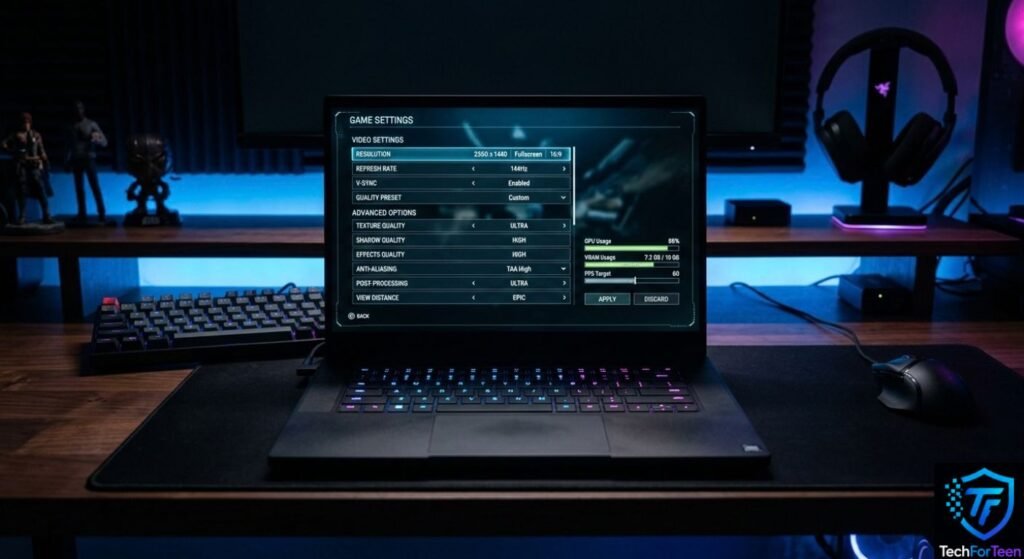
If a game freezes when there are lots of effects, enemies, or objects on screen, try lowering its graphics settings.
Start with settings such as:
- Texture quality
- Shadow quality
- View distance
- Effects quality
- Anti-aliasing
- Resolution
You do not need to change everything at once. Lower a few demanding settings, restart the game, and check whether the freezing continues.
If the game becomes stable afterward, one or more graphics settings may have been too demanding for your laptop.
4. Check Your Graphics Driver
Your graphics driver helps Windows and the game communicate with your GPU. Driver problems can contribute to display and gaming issues.
Open Device Manager, expand Display adapters, and check the graphics device listed there. You can then check for available driver updates using the appropriate driver source for your laptop or graphics hardware.
If the freezing started immediately after a driver update, checking whether the previous driver can be restored may also be useful.
5. Make Sure Your Laptop Is Not Overheating
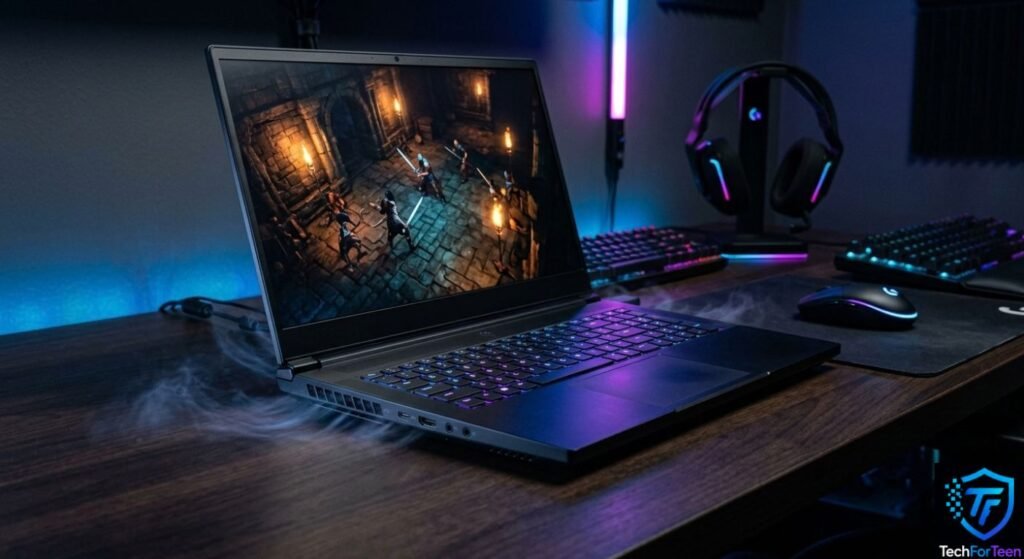
Gaming puts more load on laptop hardware than many everyday tasks. If the laptop becomes very hot, performance can be affected.
Make sure the laptop is placed on a hard, flat surface so its ventilation openings are not blocked. Avoid playing on soft surfaces such as a bed or thick blanket.
Also, check whether the fans are running normally and whether dust is blocking the vents. If the laptop becomes unusually hot or shuts down during gaming, consider having it checked by a qualified technician.
6. Check Free Storage Space
Games need storage space for their files, updates, and temporary data. A drive that is almost full can also make general Windows performance worse.
Open Settings > System > Storage to check how much space is available.
If your drive is nearly full, remove unnecessary files or move personal files to another suitable storage location. Keep important schoolwork and personal files backed up before deleting anything.
For more Windows performance advice, Microsoft’s official tips for improving PC performance can also help you identify other possible causes.
7. Verify or Repair the Game Files
Sometimes a game can freeze because one or more of its files are damaged or missing.
Many game launchers provide an option such as Verify, Repair, or Verify integrity of game files. The exact name and location depend on the launcher.
Run the repair or verification process and allow it to finish before launching the game again.
If the launcher reports damaged files, it may download replacement files automatically.
8. Check Windows and Game Updates
An outdated version of Windows or an older game build can sometimes cause compatibility problems.
Install available Windows updates and check whether the game launcher has an update waiting.
However, if the freezing began immediately after a particular update, check the game’s official support information before making additional changes. Compatibility problems can sometimes appear after major software changes.
9. Try Windows Graphics Settings
Windows 11 includes graphics settings that allow you to control how particular games use available graphics hardware.
Go to:
Settings > System > Display > Graphics
You can select a game and, on systems with multiple GPUs, choose an appropriate graphics preference.
Windows 11 also includes Optimizations for windowed games for supported games using DirectX 10 and DirectX 11 in windowed or borderless modes. Microsoft explains how this feature works in its official Windows 11 gaming graphics guidance.
10. Check Your Game's System Requirements
Your laptop may be able to run a game but still struggle with demanding settings.
Compare your laptop’s processor, RAM, graphics hardware, and storage with the game’s published minimum and recommended requirements.
If your laptop is below the minimum requirements, changing settings may not completely solve the problem. In that situation, lowering graphics quality and resolution may help, but the game may still have limitations.
If the main problem is low FPS rather than a complete freeze, our guide on ways to improve FPS for smoother gaming has more gaming-performance tips.
What If the Game Still Keeps Freezing?
If the game continues freezing after trying the steps above, look for a pattern.
Ask yourself:
- Does it freeze immediately after launching?
- Does it happen after playing for 20–30 minutes?
- Does it happen only in one game?
- Does it happen when graphics settings are high?
- Does it happen when the laptop gets hot?
- Did the problem begin after a Windows or driver update?
These details can help narrow down the cause.
If only one game freezes, the problem may be related to that game’s files, settings, or compatibility. If several different games freeze, the issue may be more closely related to Windows, drivers, hardware, temperature, or system resources.
How to Prevent Games From Freezing
Once the problem is fixed, a few simple habits can help reduce future problems.
Keep Windows and your games updated, leave enough free storage space, and close unnecessary programs before starting a demanding game.
Also, keep your laptop’s ventilation openings clear and avoid using maximum graphics settings when your hardware struggles with them.
For online games, remember that freezing and network lag are not always the same problem. If the game continues running but players or actions appear delayed, checking your ping and what it means for gaming may be more useful than changing graphics settings.
Frequently Asked Questions (FAQs)
1. Why does my game keep freezing on my laptop?
A game may freeze because of high graphics settings, outdated drivers, overheating, limited system resources, damaged game files, or compatibility problems.
2. Can low RAM cause a game to freeze?
Limited RAM can contribute to performance problems, especially when a game and several other programs are using memory at the same time. Closing unnecessary apps can help.
3. Why does my game freeze after playing for a while?
If freezing happens after extended gameplay, heat or increasing system load may be worth checking. Make sure the laptop has proper airflow and monitor whether it becomes unusually hot.
4. Should I lower graphics settings if my game freezes?
Yes. Lowering demanding settings such as shadows, textures, effects, or resolution can reduce the workload on your laptop.
5. Can outdated graphics drivers cause game freezing?
Driver problems can contribute to graphics-related issues. Check for an appropriate driver update, especially if the problem started after a Windows or game update.
6. Why does only one game keep freezing?
If other games work normally, the issue may be specific to that game. Check its files, updates, system requirements, and official troubleshooting information.
7. Is game freezing the same as lag?
No. A complete freeze means the game becomes stuck or stops responding. Lag can refer to delayed responses or slow performance while the game is still running.
Conclusion
A freezing game does not always mean your laptop needs new hardware. Start with simple steps such as restarting the laptop, closing background apps, lowering graphics settings, checking drivers, improving airflow, and repairing game files. If the problem continues, identify when the freezing happens and whether it affects one game or several. That information can help you find the underlying cause and choose the next troubleshooting step.