
How to Create Password
Creating a strong password is one of the simplest ways to protect your online accounts. Whether you are signing up for a school platform, social media account, gaming service, or email, learning how to Create Password combinations safely can help reduce the risk of unauthorized access. A weak password may be easy to remember, but it can also be easier for someone to guess or steal. The good news is that creating a better password does not have to be complicated. In this guide, you will learn how to create a strong password, what mistakes to avoid, how password managers can help, and why extra security features such as multifactor authentication are worth using.
What Makes a Password Strong?
A strong password should be difficult for another person or an automated guessing system to predict. Simply adding a few numbers or symbols to a short, common word does not necessarily make a password strong.
Length is one of the most important factors. NIST’s current guidance recommends that passwords created by users should be at least 15 characters long. Longer passwords or passphrases can provide better protection and may be easier to remember when they use several unrelated words.
A good password should also be:
Long enough to make guessing harder.
Different for every important account.
Unrelated to your personal information.
Easy for you to manage securely.
Free from common words, predictable patterns, and frequently used passwords.
For example, avoid passwords based on your name, birthday, school name, favorite team, or simple sequences such as 123456. For important accounts, using a password manager can also help you create and store long, unique passwords safely.
How to Create a Strong Password
If a website requires you to make your own password, follow these steps.
1. Start With a Long Passphrase
One useful approach is to create a passphrase made from several unrelated words.
For example, instead of using a short password such as:
Blue123
you could think of several unrelated words and combine them into a much longer phrase.
Do not copy examples from articles and use them for your real accounts. Create your own unique combination instead.
A passphrase can be easier to remember than a short password filled with random symbols. More importantly, its extra length can make guessing harder.
2. Avoid Personal Information
Never build an important password around information that people can easily discover.
Avoid using:
- Your name
- Birthday
- Phone number
- School name
- Username
- Favorite celebrity
- Pet’s name
- Home address
- Simple family information
For example, a password based on your name and birth year may seem personal and difficult to guess. However, someone who knows you or can find information about you online may be able to make a good guess.
3. Make Every Password Unique
One of the biggest password mistakes is using the same password for multiple accounts.
Imagine that you use one password for your gaming account, email, and social media. If that password is exposed through one service, someone may try it on your other accounts too.
NIST recommends using distinct passwords for different services because reused passwords can contribute to password-stuffing attacks.
Therefore, your important accounts should have their own passwords.
For more information about protecting passwords, you can also read this guide on digital hygiene and strong passwords.
Should You Use a Password Manager?
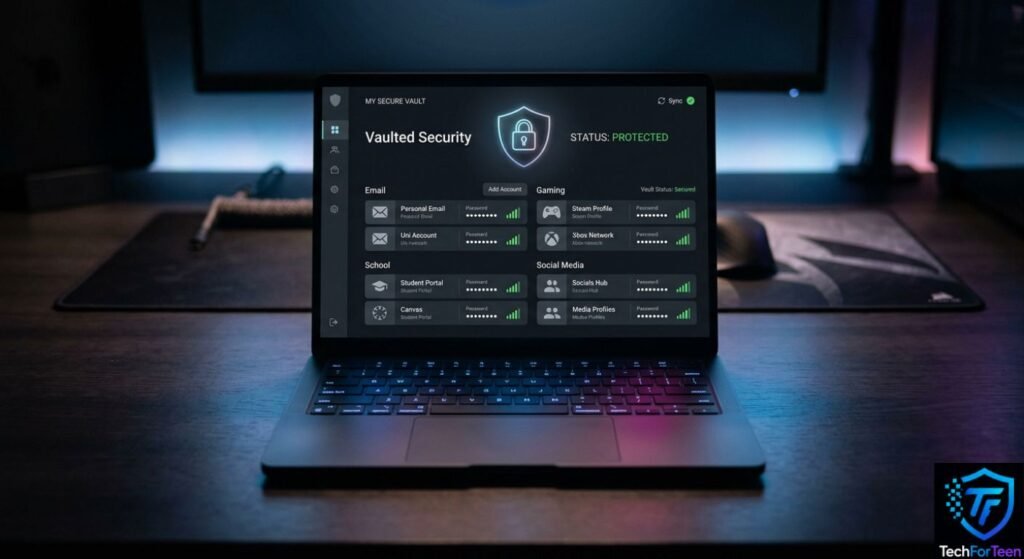
Remembering a different long password for every account can become difficult. That is where a password manager can help.
A password manager can generate unique passwords and store them in a protected vault. Instead of remembering every password separately, you generally need to remember the main password used to access the manager.
NIST recommends password managers as a practical way to create and manage long, unique passwords.
When choosing one, look for important security features such as:
- Password generation
- Secure password storage
- Multifactor authentication
- Support for your devices
- Reliable account recovery options
Your password manager itself is extremely important because it can protect access to many other accounts. For that reason, protect its main account carefully.
Turn On Multifactor Authentication
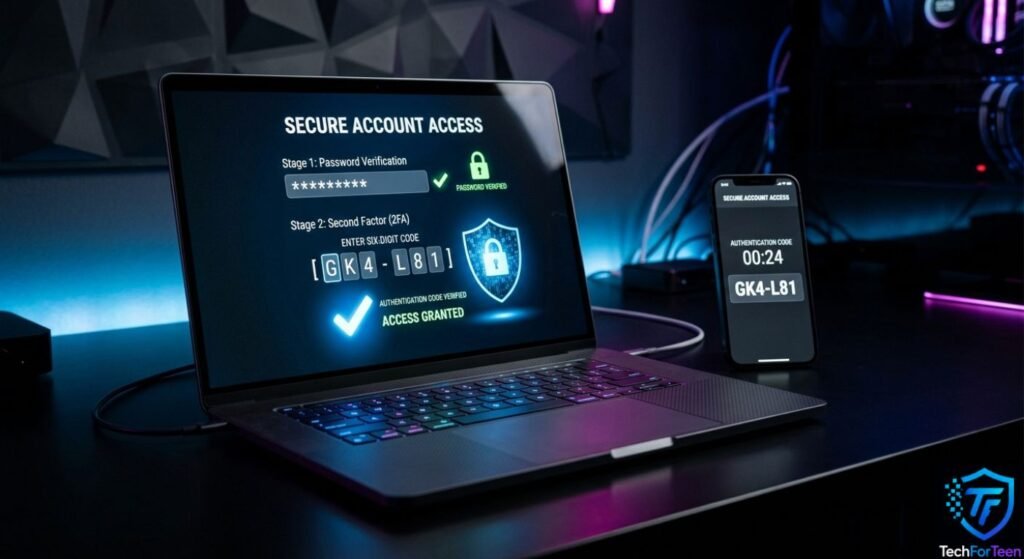
A strong password is useful, but it should not be your only layer of protection when additional security options are available.
Multifactor authentication (MFA) asks you to provide another form of verification after entering your password. Depending on the service, this could involve an authenticator app, security key, or another supported method.
For example, imagine someone somehow obtains your password. If MFA is enabled, that password alone may not be enough to access the account.
For additional guidance, see NIST’s password and account security guidance.
Common Password Mistakes to Avoid
Even a password that looks complicated can be a poor choice if it follows a predictable pattern.
Using Simple Passwords
Passwords such as password, qwerty, or simple number sequences are poor choices because they are widely known and easy to guess.
Adding a Number to an Old Password
Changing MyPassword to MyPassword1 does not make it a completely different password. Predictable changes can still leave an account vulnerable.
Reusing One Password
Using one password everywhere creates a bigger problem if that password is exposed.
Sharing Your Password
Never send your password to friends, classmates, or other people through messages or social media.
If you want to understand why this matters, read our guide on why you should never share your password.
Saving Passwords in Unsafe Places
Writing important passwords on a public note, sharing them in a group chat, or leaving them where others can easily see them can create unnecessary risks.
A reputable password manager is usually a safer option for managing multiple passwords.
What If You Forget Your Password?
Forgetting a password does not mean you should immediately create a weak replacement.
First, use the account’s official password-reset process. Most major services provide a way to verify your identity and create a new password.
After resetting it, make sure the new password is unique. If the account supports MFA, consider enabling it as well.
Also, avoid using the same password that you previously used on another account.
How to Create Passwords for Different Accounts
Not every account needs to be treated in exactly the same way, but important accounts deserve extra attention.
Email Accounts
Your email account deserves extra protection because it can often be used to recover access to other accounts. Choose a strong, unique password for your email and turn on MFA whenever the service supports it.
Gaming Accounts
Your gaming account may contain valuable purchases, saved progress, or personal information. Choose a separate password for your gaming account rather than using the same one you use for social media.
School Accounts
School platforms can contain assignments, messages, documents, and other personal information. Follow your school’s password rules and never share your login details with classmates.
Social Media Accounts
Use a unique password and enable additional security features provided by the platform. Be especially careful with suspicious login pages and messages asking for your password.
What to Do If You Think Someone Knows Your Password
Act quickly if you believe your password has been exposed.
- Change the password through the official website or app.
- Make the new password unique.
- If available, use the account settings to log out of devices or sessions you no longer recognize.
- Turn on MFA.
- Check for unfamiliar account activity.
- Avoid using the exposed password on any other account.
If you reused the same password elsewhere, change those accounts too.
Passwords vs. Passkeys
Passwords are still common, but some services now support passkeys. A passkey uses cryptographic technology and can allow you to sign in using a device-based method such as a fingerprint, face recognition, or device PIN, depending on the platform.
Passkeys can reduce some password-related risks, particularly phishing, because there is no traditional password for you to type into a fake website.
However, availability depends on the service and device you are using. If passkeys are not available, strong unique passwords combined with MFA remain useful security measures.
Quick Checklist for a Strong Password
Before creating or changing a password, check the following:
- Is it long?
- Is it unique to this account?
- Does it avoid personal information?
- Is it different from your previous passwords?
- Can you store it safely?
- Does the account offer MFA?
- Could a password manager help you create and manage it?
Above all, avoid using a password taken directly from an example you find online. Create your own unique password or let a trusted password manager generate one.
Frequently Asked Questions (FAQs)
1. What is the easiest way to create a strong password?
Choose a long, unique passphrase, or let a trusted password manager create one for you. Avoid personal information and predictable patterns.
2. How long should a password be?
When you have to create a password yourself, NIST currently recommends at least 15 characters. Longer passwords can provide additional protection.
3. Do I need a separate password for each account?
Yes. Using unique passwords helps prevent a password exposed on one service from being used to access your other accounts.
4. Is adding numbers and symbols enough to make a password strong?
Not necessarily. A short password with predictable substitutions may still be weak. Length and uniqueness are important factors.
5. Are password managers safe to use?
A trusted password manager can help you generate and securely manage different passwords for your accounts. Choose one with strong security features and protect the manager account with a strong master password and MFA when available.
6. Should I share my password with my best friend?
No. Passwords should remain private. Even if you trust someone, sharing login information can put your account at risk.
7. What should I do if I reuse the same password on several accounts?
Start by changing the password on important accounts, especially your email account. Give each account a unique password and enable MFA where possible.
Conclusion
Learning how to Create Password combinations safely is a simple but important digital skill. Create long, unique passwords, keep personal details out of them, and use a different password for each important account. A password manager can make this easier, while multifactor authentication adds another layer of protection. Most importantly, treat your passwords as private information and never share them with others. These habits can help students and teenagers build safer online accounts without making password security unnecessarily complicated.