
How to Compress a PDF
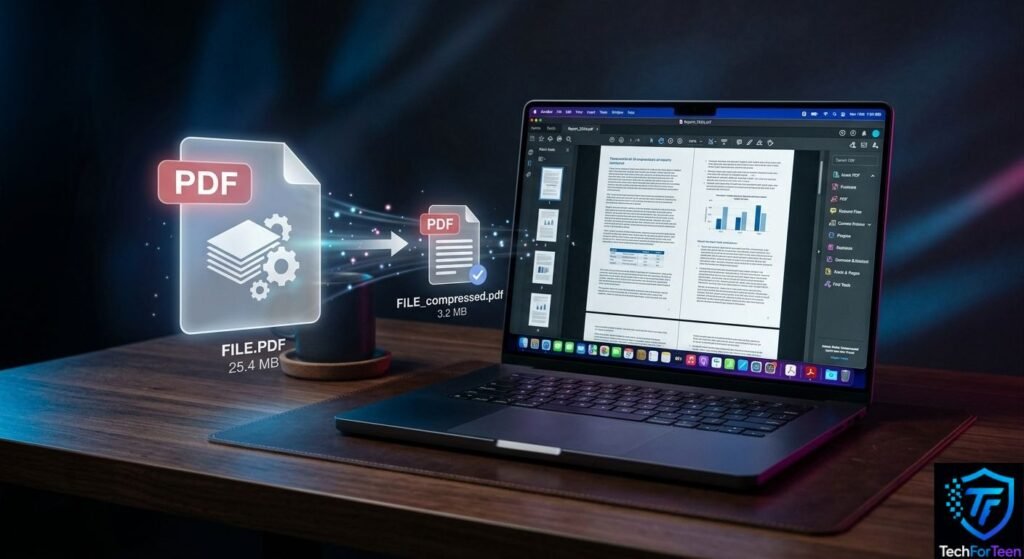
A PDF can become surprisingly large when it contains photos, scanned pages, charts, or other graphics. That can cause problems when a school website has an upload limit or when you need to send the file through email. Learning how to compress a PDF gives you a simple way to make the document smaller without deleting the pages you need. The best method depends on what created the PDF, which device you are using, and how much quality you need to keep. In this guide, you will learn several practical ways to reduce PDF size, how to choose the right compression level, and what to do when the file is still too large.
Why Is My PDF File So Large?
PDF files can vary greatly in size depending on what they contain.
A document containing only typed notes may be quite small, while a scanned textbook chapter or photo-heavy school project can take up much more space. Images are often an important part of the problem because a PDF may contain pictures at a resolution much higher than necessary for viewing on a screen.
Other elements can also add size, including embedded fonts, extra document data, and certain PDF features.
This means there is no single amount that every PDF can be reduced by. The result depends on what is inside the original document.
How to Compress a PDF Online
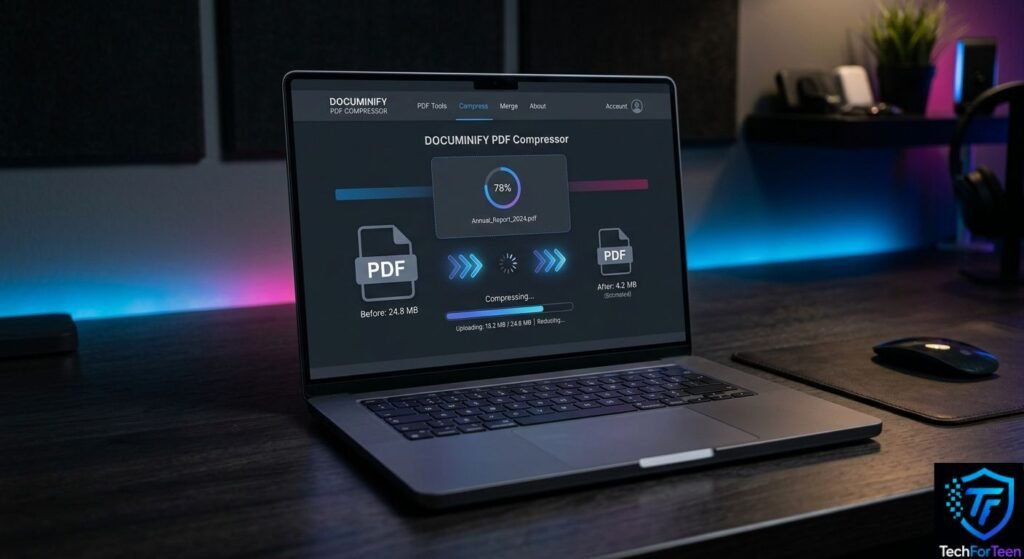
An online compressor is convenient when you need to reduce a file quickly and do not want to install a desktop program.
For example, Adobe Acrobat’s web compressor lets you upload a PDF, select a compression level, and download the smaller version. Adobe says its online tool can optimize elements such as images and embedded fonts to reduce the overall file size. You can also follow Adobe’s official guide to compressing PDFs online to learn how its compression options work.
Steps to Compress a PDF Online
- Open a trusted PDF compression service.
- Find the PDF you want to compress and select it.
- Choose the available compression level.
- Start the compression process.
- Download the resulting PDF.
- Open the new file and check its pages.
For a student, this can be useful when an assignment is too large for a school portal.
However, think about privacy before uploading a document. If the PDF contains personal records, private information, or sensitive school material, check how the service handles uploaded files before using it.
How to Compress a PDF on Windows
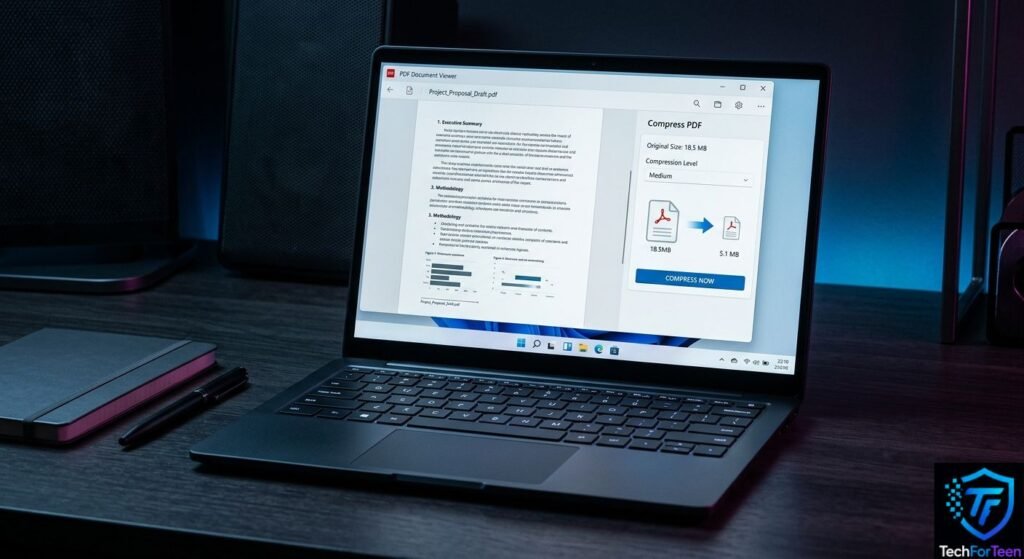
If you have Adobe Acrobat installed on a Windows computer, you can reduce the file size without using a browser.
Adobe’s current desktop instructions provide a Reduced size PDF option. You can select the required compatibility setting and save the optimized document as a new file.
Steps in Adobe Acrobat
- Open the PDF in Acrobat.
- Open the Menu.
- Select Save as Other.
- Choose Reduced size PDF.
- Select the required compatibility option.
- Confirm the settings.
- Choose a new filename and save the file.
Saving the result as a separate file is useful because your original PDF remains available if you need its higher quality later.
How to Compress a PDF on Mac
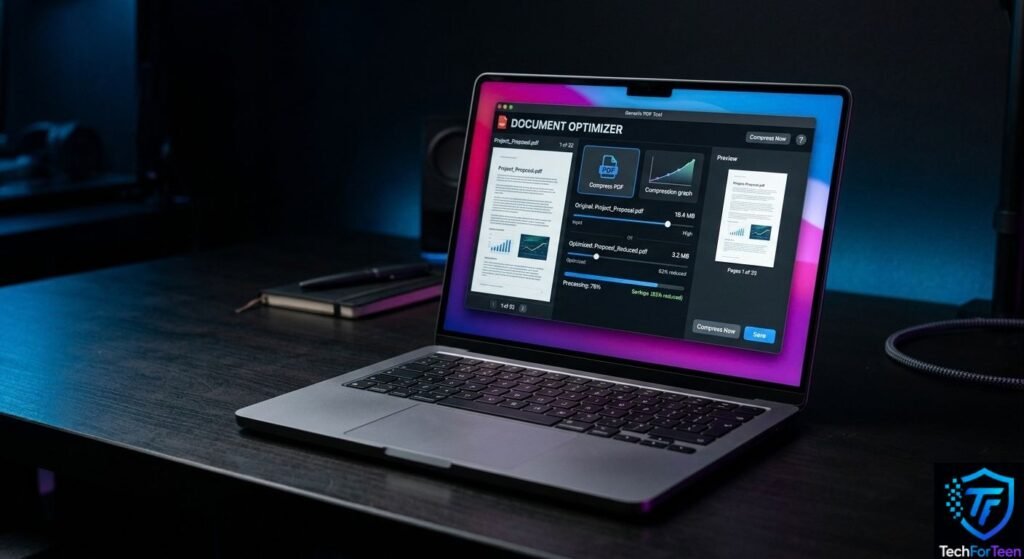
Mac users with the appropriate Adobe Acrobat desktop software can also reduce PDF size.
The current Acrobat process uses File > Save as Other > Reduced size PDF. You can then select the compatibility setting and save the smaller document.
The exact menus can vary between applications, so if you are using another PDF editor, look for options such as Compress, Reduce File Size, or Optimize PDF.
How to Compress a PDF on a Phone
You do not always need a computer to make a PDF smaller.
Adobe Acrobat’s current mobile instructions include a Compress PDF option. The app provides different levels, with stronger compression producing a smaller file while potentially reducing quality.
The general process is:
- Open the PDF in the supported Acrobat mobile app.
- Open the More options menu.
- Select Compress PDF.
- Pick a compression level.
- Start compression.
- Open the new file and inspect it.
A medium setting can be a sensible starting point when you want to reduce the size without making images unnecessarily blurry.
Which PDF Compression Level Should You Choose?
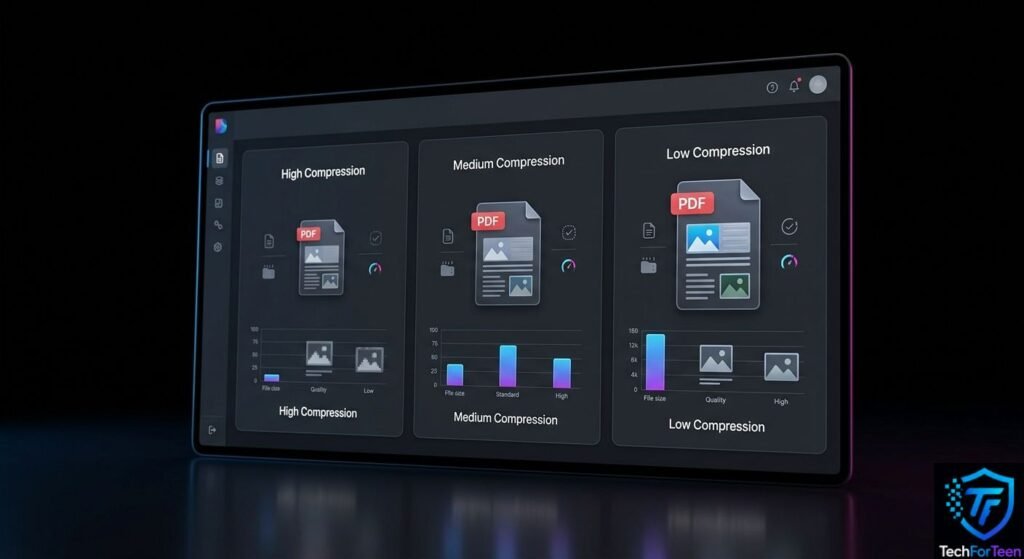
Your choice should depend on what the document will be used for.
High Compression
Choose stronger compression when the main goal is achieving a much smaller file.
It can be useful for simple documents that mostly contain text. However, image quality may decrease more noticeably.
Medium Compression
This can provide a practical balance between size and quality.
For many school assignments, notes, and ordinary documents, a middle setting may be enough.
Low Compression
Use lighter compression when image quality matters more than achieving the smallest possible file.
This can be useful for projects containing diagrams, photographs, or detailed screenshots.
The smallest PDF is not automatically the best PDF. A file that is tiny but difficult to read may create more problems than it solves.
How to Reduce PDF Size Before Creating the File
Sometimes you can prevent a large PDF instead of fixing it afterward.
If you are creating a document in Microsoft Word, look at the images before exporting the document as a PDF. Microsoft recommends compressing pictures and using an appropriate resolution to help reduce document size.
You can also:
- Remove pictures that do not add useful information.
- Crop unnecessary parts of images.
- Avoid inserting extremely large photos.
- Delete blank or unnecessary pages.
- Use a suitable image resolution for screen viewing.
- Avoid adding extra document elements that are not needed.
For example, a student making a science project might insert five large camera photos. Resizing those pictures before creating the PDF can reduce the amount of data that needs to be stored in the final document.
What If You Need to Edit the PDF First?
Compression is not always the first thing you should do.
Perhaps you have a PDF containing information that needs to be changed, rearranged, or reused. In that case, converting the document to an editable format may be more useful first.
If you need an editable version for schoolwork, you can read this guide on how to convert a PDF into Word.
After making the necessary changes, you can create a fresh PDF and then decide whether additional compression is needed.
Can Combining PDFs Make Them Larger?
Yes. When several documents are joined together, the resulting file can contain all of the images, fonts, and other information from the original files.
If you are preparing a project with several separate PDF files, you may want to organize them before reducing their size. This guide explains how to combine PDF files for students.
After combining them, check the new file’s size and compress it if necessary.
How to Check a Compressed PDF
Never assume that a smaller file is ready to submit.
Open the compressed version and check a few important things:
- Make sure every page is there.
- Read several paragraphs to confirm the text is clear.
- Look at images and diagrams.
- Check important charts or screenshots.
- Make sure the file opens normally.
- Confirm that its size meets the upload requirement.
If an image looks too blurry, create another version using lighter compression.
It is also useful to keep the original file until you know the compressed version works correctly.
Common PDF Compression Mistakes
Choosing Maximum Compression Every Time
Maximum compression can make images look worse. Choose the strongest setting only when the smaller size is more important than image quality.
Repeatedly Compressing the Same File
Repeated compression is not always a good solution. If the file has already been optimized, compressing it again may not provide much benefit and can affect quality.
Deleting the Original
Do not immediately replace your original PDF. Keep a copy until you are satisfied with the smaller version.
Ignoring the Upload Limit
If a website says the file must be below a certain size, check the final file rather than assuming compression was enough.
Forgetting Basic File Management
After compression, you still need to rename, move, upload, or share the file. If you use Windows regularly, these keyboard shortcuts for students can make everyday file-management tasks quicker.
Frequently Asked Questions (FAQs)
1. What does compressing a PDF do?
It reduces the amount of data stored in the PDF so the file takes up less space. Depending on the method, images and other elements may be optimized.
2. Is it possible to compress a PDF without reducing its quality?
Some compression methods are designed to preserve quality as much as possible. However, stronger compression can reduce image quality, so there is usually a trade-off.
3. Why is my PDF still too large after compressing it?
The document may contain many high-resolution images, scanned pages, or other data that takes up considerable space. Reducing image size before creating the PDF may help.
4. Can I compress a PDF from my phone?
Yes. Supported PDF applications can provide compression tools on mobile devices. The available features depend on the application and account.
5. What compression level should students use?
It depends on the assignment. A moderate setting is often a reasonable starting point when the document contains both text and images.
6. Should I delete my original PDF after compressing it?
It is better to keep the original until you have checked the smaller copy. You may need the original if the compressed version has quality problems.
Conclusion
Knowing how to compress a PDF can make school assignments, forms, notes, and project files easier to upload and share. You can reduce the size online, use desktop PDF software, or compress a supported file from your phone. Before submitting the result, check the pages, text, images, and final file size. Most importantly, choose compression based on the document’s purpose rather than simply trying to make the file as small as possible.